 Wastime
Back up your data
Everything you write down in Wastime lives only on your phone, and if the phone is lost, months of the diary go with it. A backup is a single file with all of your data, and it is worth keeping that file somewhere the phone can't take along when it goes.
Before you start
There is nothing to prepare besides the data itself, and no account is needed.
Steps
Open Data Backup
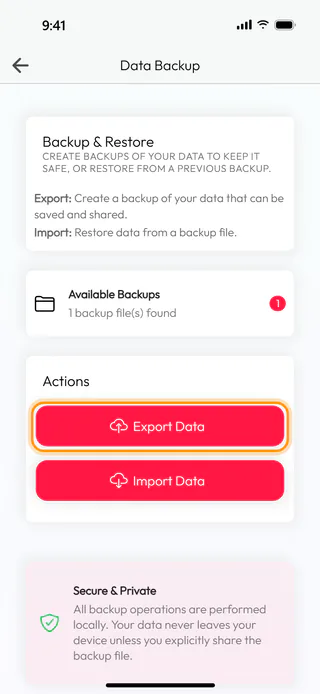
Open the menu with the button at the top left of the home screen and tap Account, then Data & Privacy and Data backup. Data Backup is where a backup is made and where it is brought back.
Choose what goes in
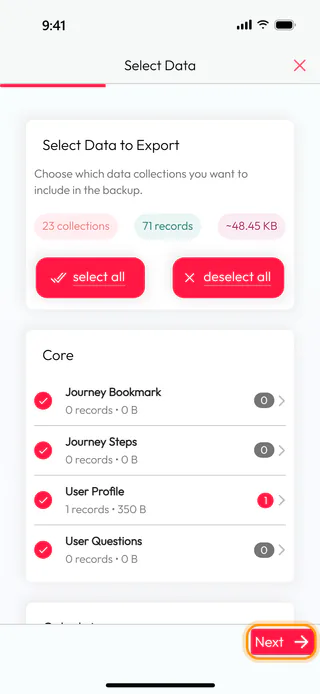
Tap Export Data. Everything is ticked from the start, 23 collections and 71 records in the example, so a full copy needs no changes, and anything you would rather leave out can be unticked further down the list. Then tap Next.
Start the export
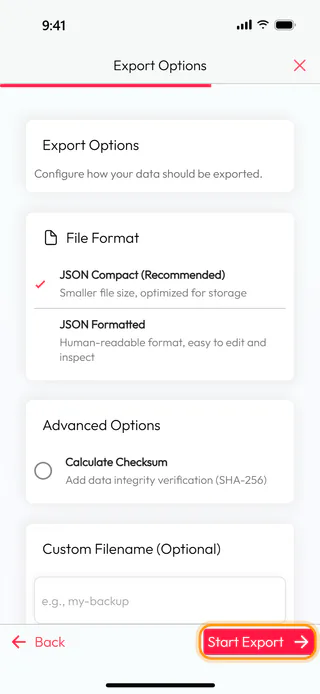
JSON Compact (Recommended) and the other options suit most backups as they are. JSON Formatted makes a larger file you can read with your own eyes, and Custom Filename (Optional) gives the file a name of your own. Tap Start Export.
Keep a copy outside the phone
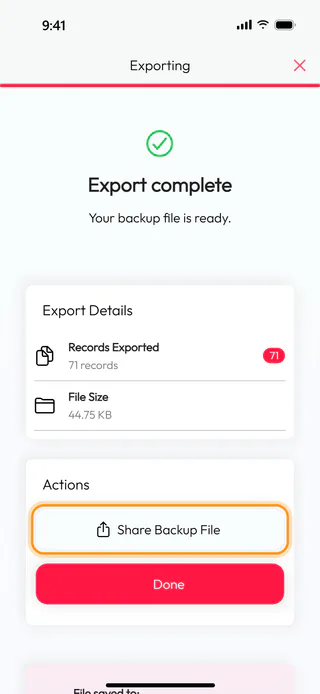
When "Export complete" shows, the file is ready, 44.75 KB of it here. For now it lies inside the app and would disappear along with it, which is why it is worth tapping Share Backup File and sending the file somewhere off the phone, to your cloud drive, say, or to yourself by mail.
Check the last backup
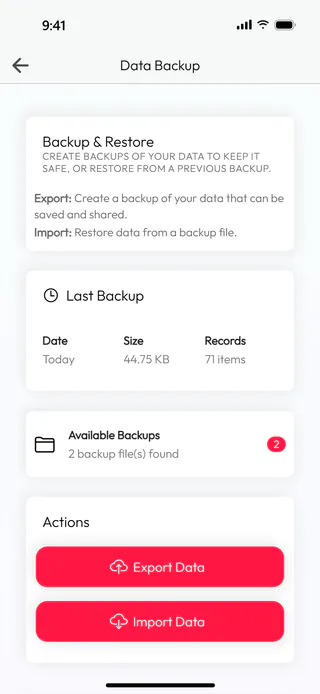
Tap Done. Back on Data Backup, the Last Backup card tells when the latest backup was made, how big it is and how many records went into it, and Available Backups counts the files the app keeps.
What's next
Restore your data from a backup shows how to bring such a file back, on a new phone or on this one.

