 Wastime
Talk a question through with AI
Some questions are easier to think through in a conversation. The app can turn any question into a prompt for an AI chat, and that prompt asks the chat to leave the answer to you, putting one question to you at a time until your own answer takes shape.
Before you start
You need a network and an AI chat you can open in a browser, ChatGPT unless you choose another. It helps to know your way around a deck, which Reflect on a question covers.
Steps
Send the question to a chat
Open a deck from Questions and stop at the question you want to talk through, here the first one of about time. Tap the button with an arrow coming out of a square, the lowest of the three round buttons at the bottom right. The app says "prompt copied, just paste it into the chat", and a moment later the chat opens.

Paste the prompt and talk
Paste the prompt into the chat and send it. It carries the question and the line under it, and asks the chat to lead you with one question at a time and to keep its own conclusions to itself. When your answers grow clear enough, the chat offers to let you write the final answer yourself or to help you put it together from what you have already said. The app sends nothing on its own, and what goes into the chat is only what you paste.
Choose your chat and language
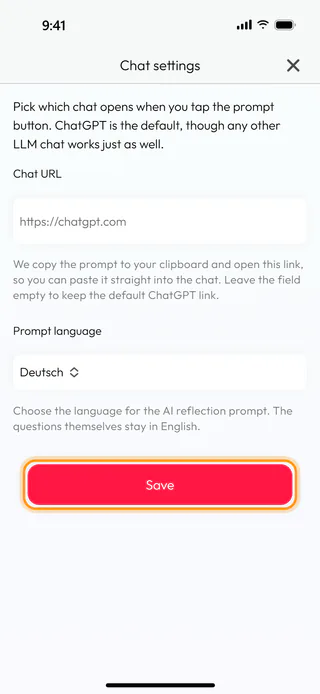
Close the deck with the round cross, then tap the gear at the top right of Questions to open Chat settings. Put the address of another chat into Chat URL, or leave it empty to keep ChatGPT. Prompt language sets the language of the prompt, here Deutsch, while the questions themselves stay in English, inside the prompt too. Tap Save, and the app answers with "Settings saved". If the address can't be read as a link, the app says "Enter a valid URL" and keeps the window open.
What's next
An AI assistant can help with the calendars too, turning a list of the moments of your life into milestones, as Import milestones with an AI assistant shows. The Reflection Questions page tells more about the decks.

