 Wastime
Choose what the app may report
Everything you record in Wastime stays on your phone. Separately from that, you can let the app tell its makers about its crashes or about which screens get used, and the answer you gave on the first day can be changed on any other.
Steps
Open Data & Privacy
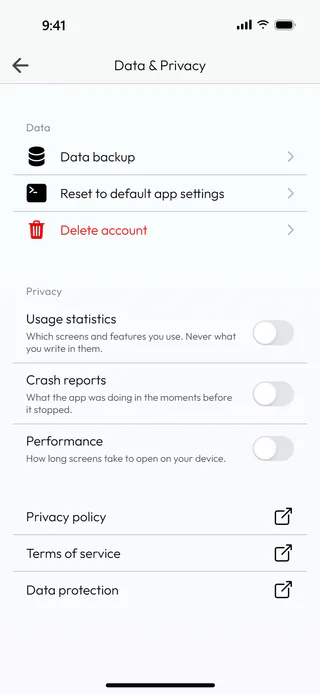
Open the menu with the button at the top left of the home screen, tap Account and then Data & Privacy. Under Privacy there are three switches, and none of them touches anything you write in the app.
Switch on what you are happy to share
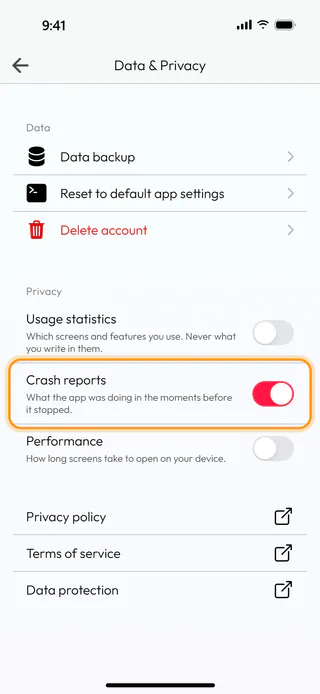
Turn on whichever you are comfortable with. Crash reports sends what the app was doing in the moments before it stopped, Usage statistics which screens and features you use, and Performance how long the screens take to open on your phone. Each switch keeps its answer at once and can be turned back off at any time.
Read the policies
Privacy policy, Terms of service and Data protection at the bottom of the screen open in the browser. Higher up, under Data, there is Delete account for those who signed in to an account, and the questions of the Account section tell what happens then.
What's next
Back up your data keeps a copy of everything that stays on the phone.

