 Wastime
Choose which features you see
Wastime has nine features, and not everyone needs every one of them. The ones you don't use can be hidden, and the ones you come back to most often can get a bigger tile, so the home screen gradually becomes your own.
Steps
Open Setup features
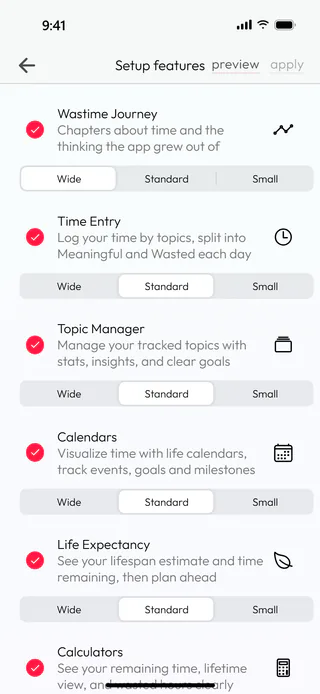
Open the menu with the button at the top left of the home screen, tap Account, then Settings and Setup features. Every feature has a tick and, under it, the size of its tile on the home screen.
Hide a feature and resize a tile
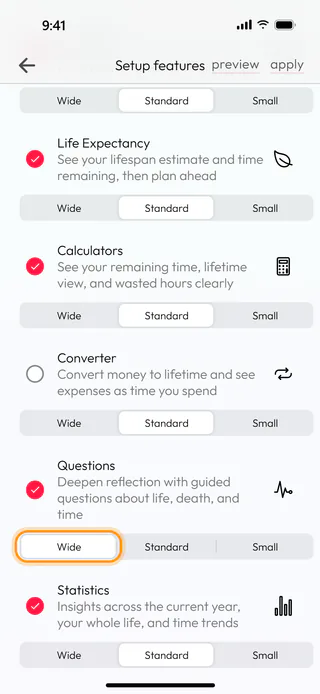
Untick a feature you don't use, Converter in the example, and it leaves the home screen and the menu, while everything you kept in it stays in the app. For one you open every day, choose Wide under its name, as here for Questions, and its tile takes the whole width of the screen with a longer description, while Standard keeps half the width and Small less. The feature the app opens on is marked "(home)" and can't be hidden.
Preview the home screen
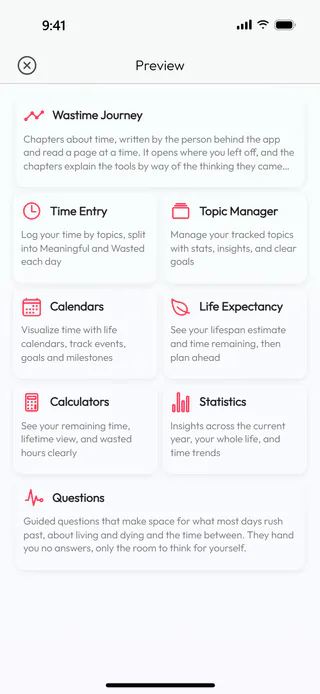
Tap Preview to see the home screen the way it is going to look. The cross in its corner closes the preview.
Apply the changes
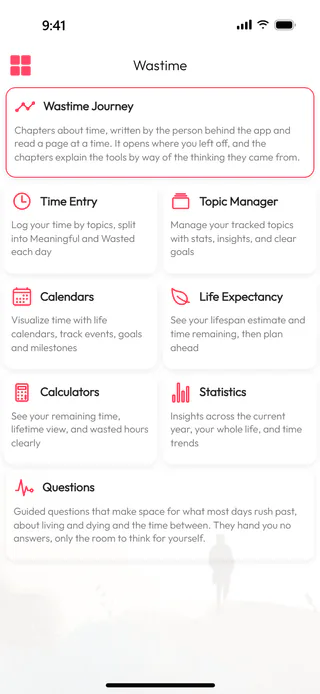
Tap Apply and then Yes, and the home screen changes at once, which the app confirms with "Features updated".
What's next
Reorder the menu changes the order of the features, and Choose your home screen makes the app open on one of them.

