 Wastime
Choose your home screen
If you open the app for one screen every time, the grid of tiles becomes an extra step on the way to it. The app can open straight on that screen, and everything else stays within reach in the menu.
Steps
Open Settings
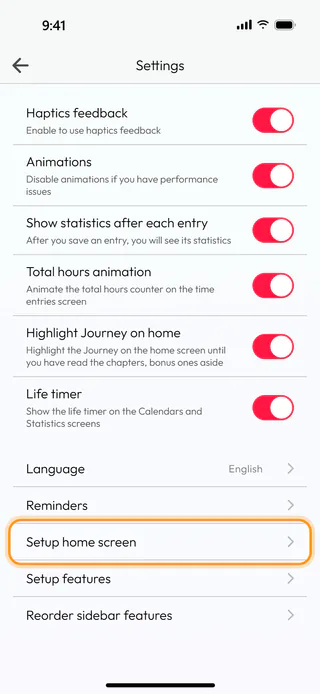
Open the menu with the button at the top left of the home screen, tap Account and then Settings, and find Setup home screen in the list under the switches.
Pick a screen
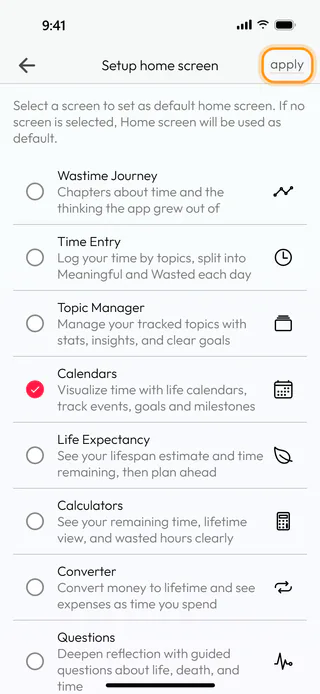
Tap Setup home screen, tick the screen you want, Calendars in the example, and tap Apply. With nothing ticked, the app opens on the usual home screen.
Confirm and restart
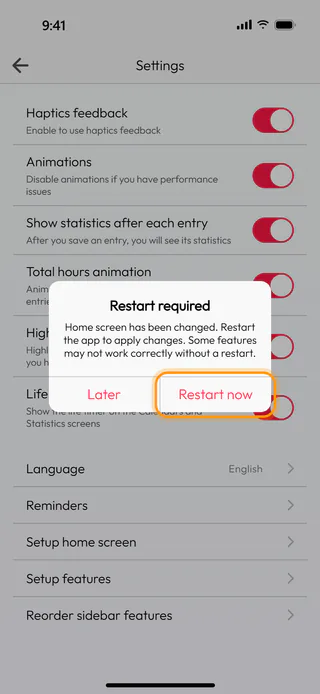
The app asks "Set Calendars as default home screen?", and after Yes it explains that the change needs a restart. Restart now closes the app, and Later leaves it running until the next time you open it.
Open the app again
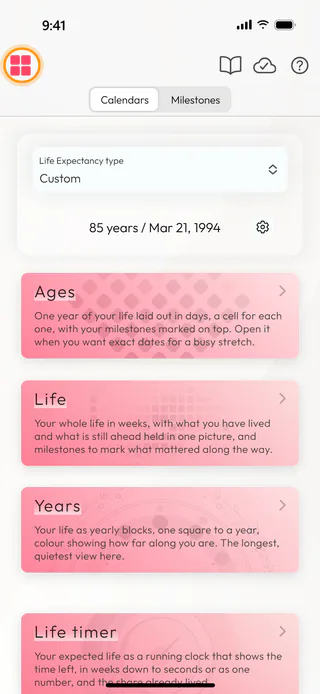
From now on the app opens on Calendars. The button with four squares at the top left, where the back arrow used to be, opens the menu with all the other features.
What's next
Choose which features you see hides the ones you don't need, and Reorder the menu puts the rest in the order you like.

