 Wastime
Create your first rate
A rate tells the converter what you earn and over what working time. Once it is set, any price you type reads as the hours of work behind it, so this is the one thing the converter needs from you before it can help.
Steps
Open the converter
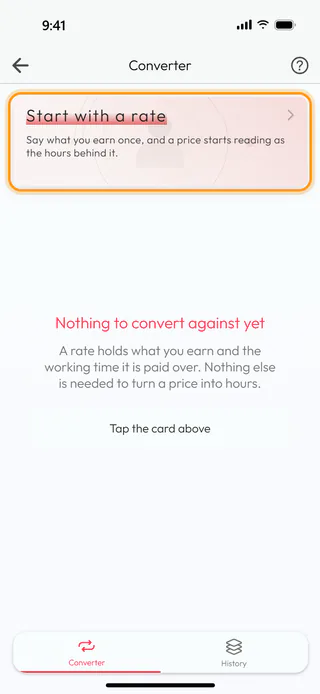
On the home screen, tap Converter. Until there is a rate, the screen shows a card that says Start with a rate. Tap it to begin.
Name the rate
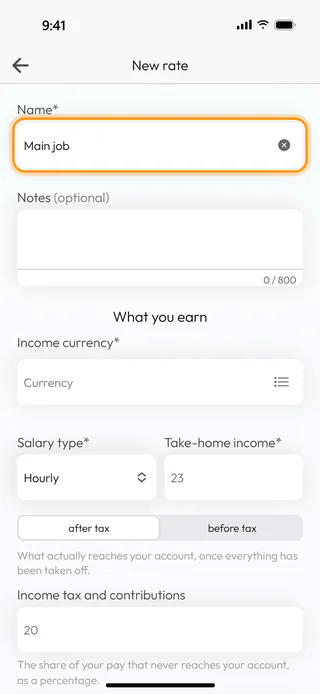
The New rate screen opens. Give the rate a name in Name*, such as your job or a client, so you can tell it apart later. Notes is there for anything you want to remember about it and can stay empty.
Pick the currency
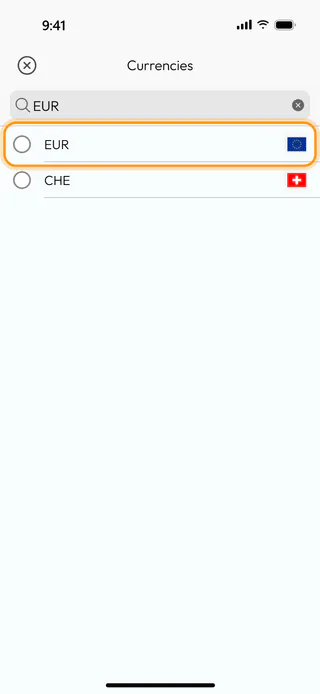
Tap Income currency*, type the code of your currency into the search and tap it in the Currencies list.
Say what you earn
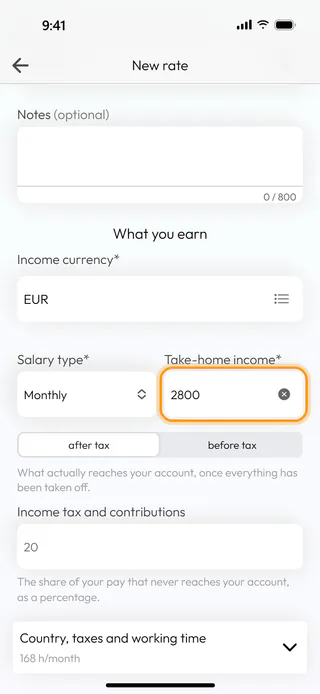
Under Salary type*, choose how your pay is counted, by the hour, the month or the year, with Hourly, Monthly or Yearly. Then type the amount into Take-home income*. A new rate starts on after tax, and the number here is what actually reaches your account. If you know your pay only as the figure before tax, Account for taxes in the converter explains the before tax side.
Check the working time and where you shop
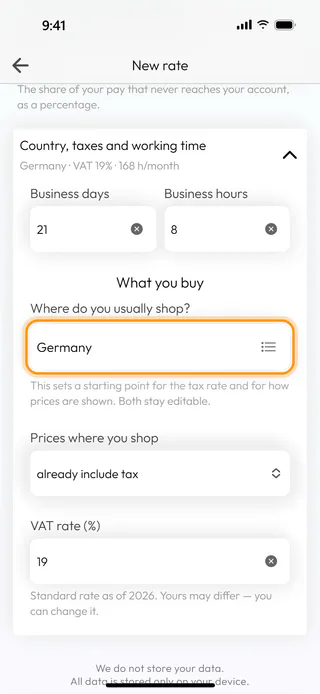
Open Country, taxes and working time. For a monthly or yearly pay the app fills in Business days and Business hours, 21 days of 8 hours for a month, and the converter spreads your pay over exactly that time, so it is worth correcting them if your month looks different. Further down, Where do you usually shop? sets how prices are shown and the usual tax on purchases in that country, here a VAT rate (%) of 19, and both stay yours to change.
Save it
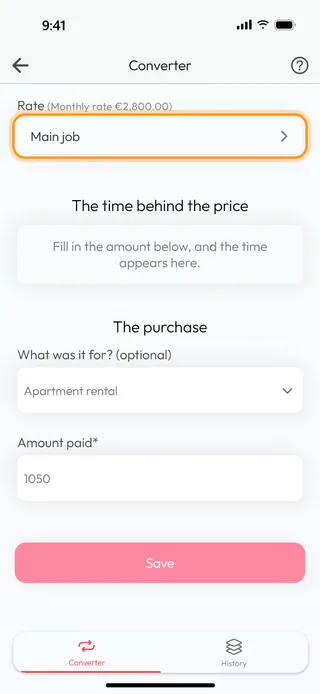
Tap Save. The app confirms with "Rate saved" and goes back to the converter, which now shows your rate under Rate and waits for a price.
What's next
With the rate in place, Turn a price into hours of work shows what the converter makes of a price. The Money to Time Converter page says more about the idea behind it.

