 Wastime
Account for taxes in the converter
Tax shows up in a purchase twice, once in the part of your pay that never reaches your account and once in the part of the price that goes to the state at the checkout. A rate can hold both, and then the result shows how much of the time behind a price is really tax.
Before you start
This guide changes a rate you already have, and Create your first rate sets up the first one.
Steps
Open your rate
On the converter, tap the rate under Rate to open Your rates, and tap Edit on the rate you want to change. Each card already shows what its rate counts from, like "€4,500.00/month before tax → €2,790.00 net".
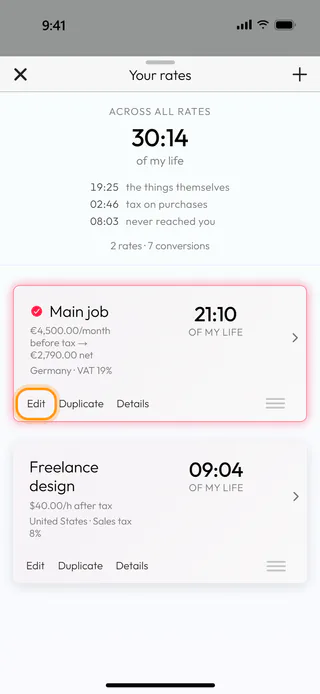
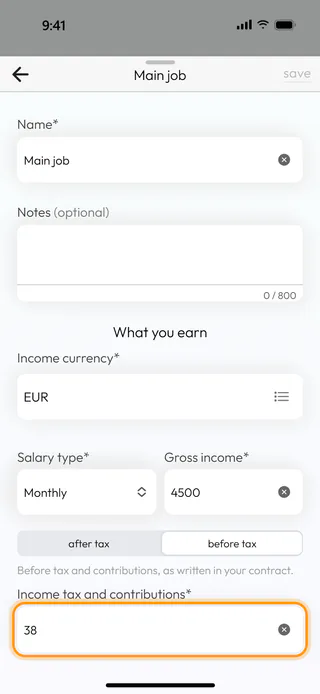
Enter what you earn before tax
If the figure you know is the one from your contract, switch the rate to before tax. The field becomes Gross income*, and Income tax and contributions* turns required. Enter there the share of your pay that never reaches your account, as a percentage. The converter then counts every hour from what is left, which is why the same price takes longer than the gross figure would suggest. With after tax, that share still appears in the split of the result, while the time stays the same.
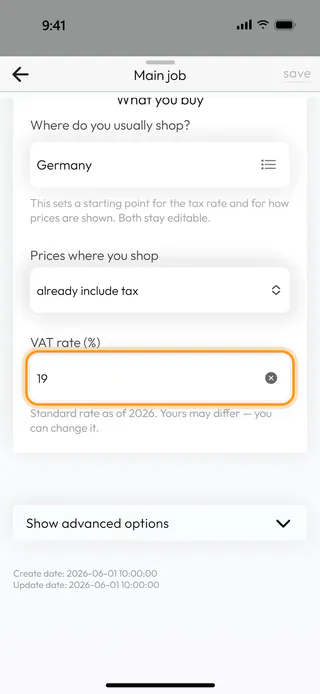
Say where you shop
Open Country, taxes and working time and look under What you buy. Where do you usually shop? fills in the usual tax of that country, and Prices where you shop tells the converter whether the prices you type already include it or get it added at the checkout. The rate itself, here VAT rate (%), is yours to change, and while it matches the country's standard rate, the note under it says so.
Save the changes
Tap Save at the top to keep what you changed. If the rate already has purchases and the change affects the numbers, the app asks what should happen to them. Recalculate at the new rate counts them again, and Keep the rates they were logged at leaves each one as it was when you saved it. The app confirms with "Changes saved".
Read the tax in the result
Type a price on the converter. Under the time, "the thing itself" is what you bought, a line like "VAT at your 19% rate" is the tax inside the price, and "never reached you" is the time spent on what was taken from your pay. The tax line always uses the rate you set, whatever the item was taxed at, so the split works best as a rough guide rather than a receipt.
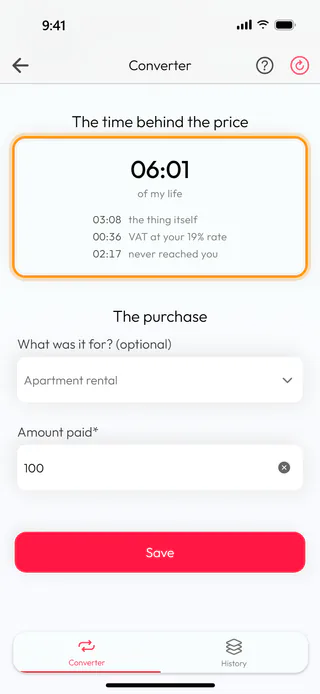
Prices without tax
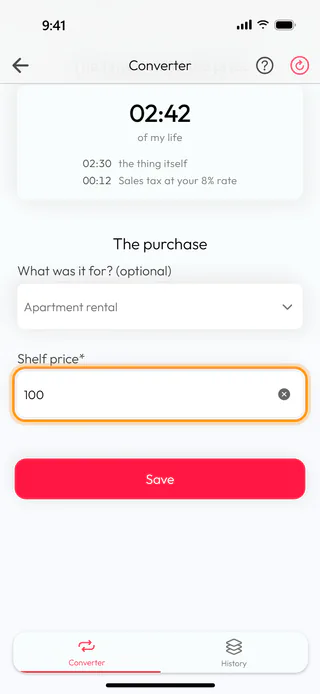
Where tax is added at the checkout, as in the United States, set Prices where you shop to get tax added at the checkout. The converter then asks for the Shelf price* and adds the tax on top, so 100 at a sales tax of 8% counts as 108, and the split names it "Sales tax at your 8% rate".
What's next
Turn a price into hours of work covers the rest of the converter, from describing a purchase to keeping it in your history. When your pay or taxes change later, Change or delete a rate shows how to update the rate and what happens to the purchases you already saved. The Money to Time Converter page says more about the idea behind it.

