 Wastime
Change or delete a rate
Pay rarely stays the same for long, and a side job sooner or later comes to an end. A rate can follow those changes, and when it does, you decide whether the purchases you saved earlier should be counted again or stay the way they were.
Before you start
This guide changes a rate that already has a few saved purchases. Create your first rate sets one up, and Turn a price into hours of work saves the purchases.
Steps
Change what you earn
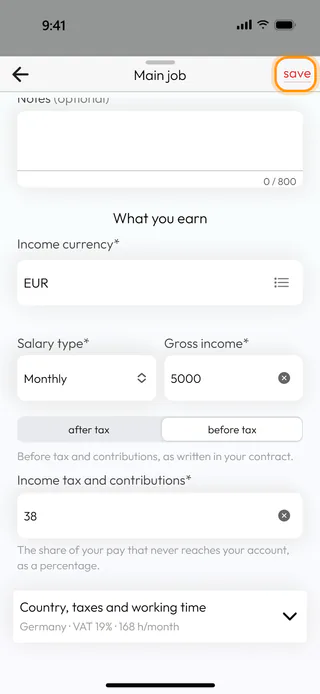
In the converter, tap the rate under Rate and, in Your rates, tap Edit on its card. The form opens with the name of the rate at the top and everything you entered when you set it up. Change the pay, here Gross income* from 4500 to 5000. The save button at the top turns red once there is something to save.
Decide about past purchases
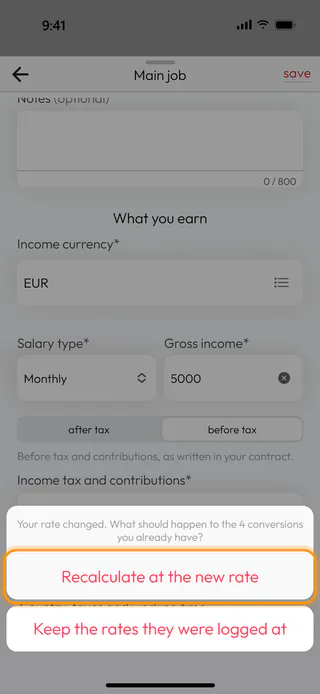
Tap save. When the change affects how the time is counted and the rate already has purchases, the app asks what should happen to them. Recalculate at the new rate counts every one of them again with the new numbers. Keep the rates they were logged at leaves them as they were, so only the purchases you save from now on use the new pay. A new name, new notes or another currency changes nothing in the purchases, and the app doesn't ask.
See the new numbers
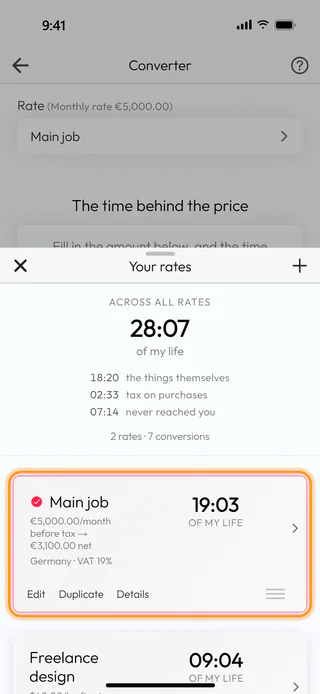
The app answers with "Changes saved". Tap the arrow at the top to go back to Your rates. The card now shows the new pay, and after a recalculation the time of the rate and the total across all rates are smaller, since an hour of your work is now worth more. The purchases on the History tab carry their new times as well.
Open the advanced options
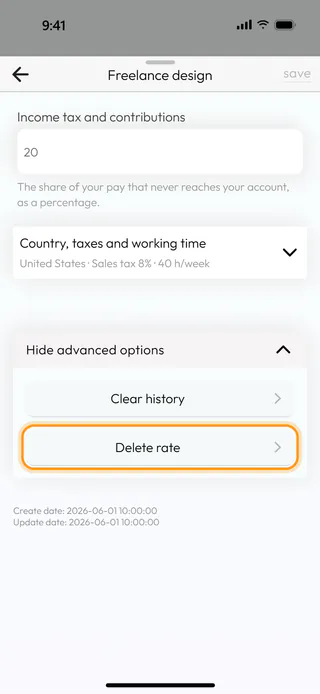
To clear or delete a rate, tap Edit on its card and scroll to the bottom of the form. Tap Show advanced options, and two more rows appear, Clear history and Delete rate.
Clear a rate's history
Clear history removes every purchase saved with the rate and keeps the rate itself, for when you want to start counting afresh. The app asks you to type the name of the rate and tick "I know these conversions will be gone." before clear works. Cleared purchases can't be brought back.
Delete the rate
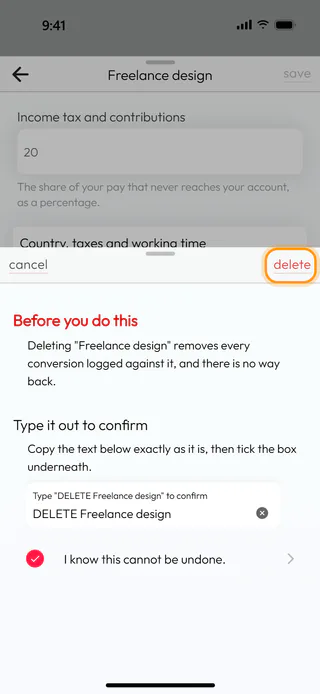
Tap Delete rate. To confirm, type the text the field asks for exactly as it is, "DELETE" in capitals and the name of the rate, here "DELETE Freelance design", and tick "I know this cannot be undone.". Then tap delete at the top. The rate goes away together with all of its purchases, and there is no way to bring them back.
Check what is left
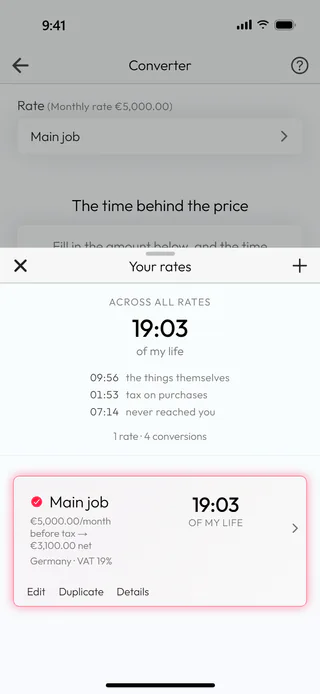
The app tells you that "Freelance design" is deleted and returns to Your rates. The deleted rate and its purchases are gone from the list, from the total and from the history. If the converter was counting with the rate you deleted, it moves to another one on its own.
What's next
The purchases themselves can be corrected one by one, and Review and edit your history shows how. Work with several rates covers copying a rate and putting the list in order. The Money to Time Converter page says more about the idea behind it.

