 Wastime
Work with several rates
A main job and a side project rarely pay the same, and an hour of one is worth a different amount than an hour of the other. Each of them can have a rate of its own, and the converter keeps them side by side and adds up the time across all of them.
Before you start
You need at least one rate, and Create your first rate sets it up.
Steps
Open your rates
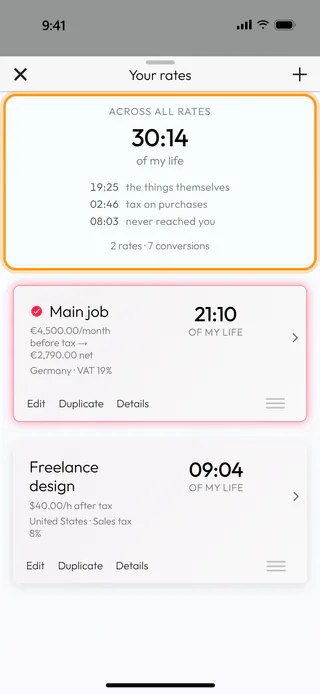
In the converter, tap the rate under Rate. The Your rates sheet opens with Across all rates at the top, the time every purchase you saved has taken, whatever rate it was counted with. Money is not added up there, because your rates may be in different currencies and the app keeps no exchange rates. Under it, each rate shows the time of its own purchases.
Pick the rate to count with
A tap on a card makes that rate the one the converter counts with, and the sheet closes. The tick next to a name shows which rate is in use. The next time you open the converter, it starts from the rate you last saved a purchase with, or from the first one in the list if you haven't saved any yet.
Put your rates in order
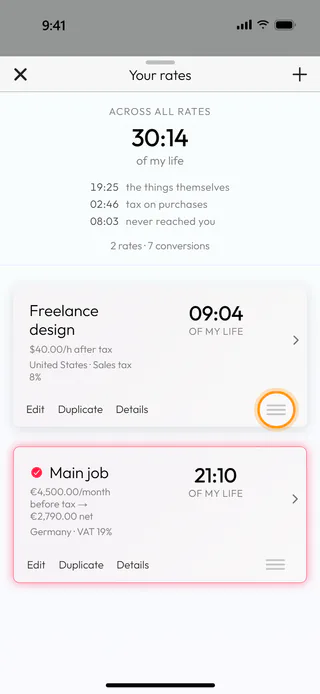
Hold the handle with three lines at the right of a card and drag the card up or down. The new order is kept straight away, and the lists of rates in the history follow it too.
Copy a rate
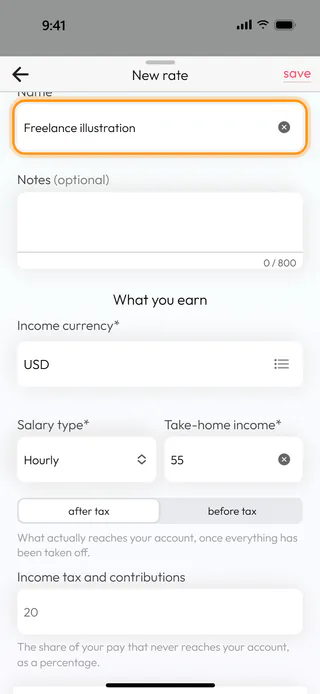
Tap Duplicate on a card. A New rate form opens with everything the original rate holds already filled in, from the currency and the pay to the country and the taxes, and only the name left empty. Type a name into Name* and change whatever differs, here the pay in Take-home income*. The purchases of the original rate stay with it.
Save the copy
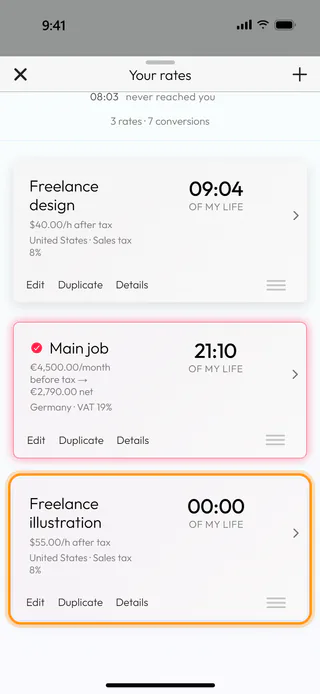
Tap save at the top. The app answers with "Rate saved", and the new rate takes its place at the end of the list with 00:00, since nothing has been counted with it yet. The total across all rates stays the same.
Add a rate from scratch
The + button at the top of the sheet opens an empty New rate form, the same one Create your first rate walks through. There is no limit on how many rates you keep.
What's next
A rate can be changed later or removed altogether, and Change or delete a rate shows what happens to its purchases when you do. The Money to Time Converter page says more about the idea behind it.

