 Wastime
Open a section and mark it read
Journey doesn't have to be read in order. Any section on the map can be opened at the moment it feels closer, and what you have read is marked by itself, so later you can see what is still ahead.
Before you start
Read Wastime Journey shows how to open Journey and turn its pages.
Steps
Pick a section on the map
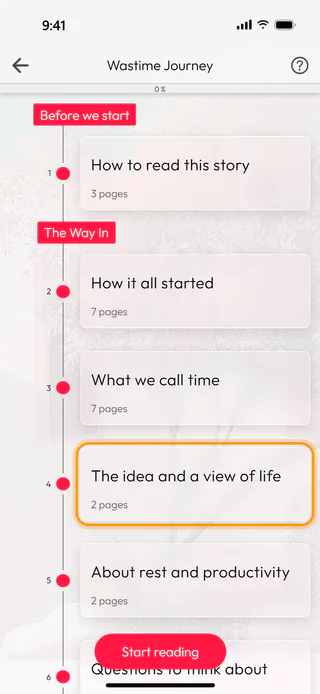
On the map, tap the card of the section you want, here The idea and a view of life in the chapter The Way In. It opens on its first page, and from then on that is the place Journey remembers.
Read it to the end
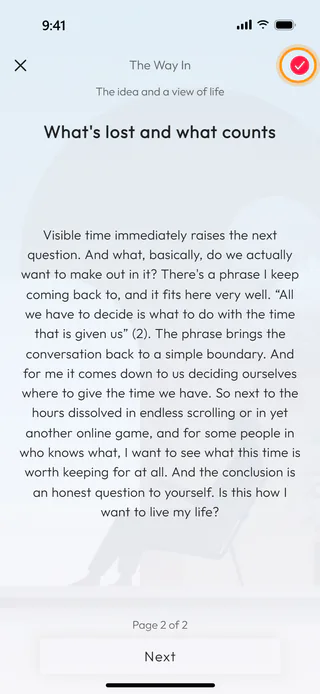
Tap Next until the last page, "Page 2 of 2" here. The tick at the top fills in by itself, so there is nothing for you to mark.
See your progress
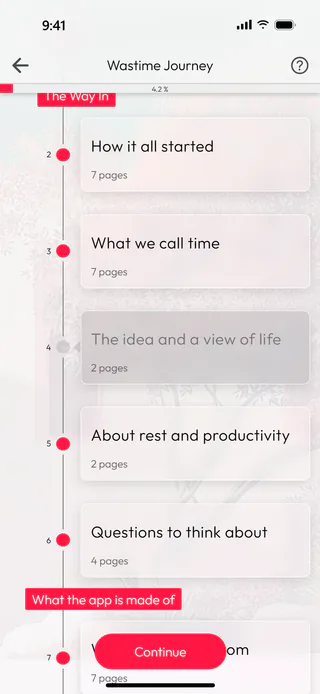
Close the section with the cross. On the map its card and its dot have turned grey, and the bar shows 4.2 %, one of the 24 sections it counts. A chapter turns grey once all of its sections are read, and the chapters marked bonus stand aside from the count, so passing one by costs you nothing.
Take a mark back
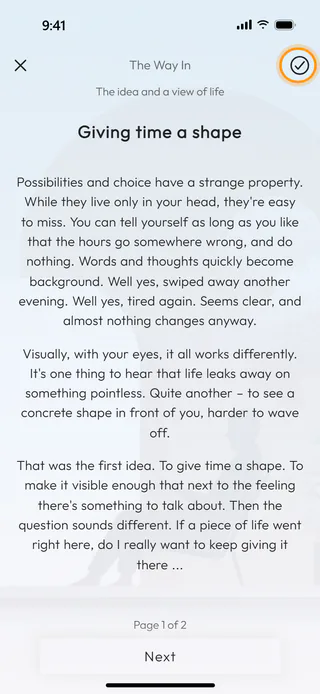
Open the section again and tap the tick at the top, and the mark comes off, taking the percentage down with it. The same tap marks a section as read before its last page, for one you would rather not read to the end.
What's next
Go from a chapter to its screen shows where the last page of some chapters leads.

