 Wastime
Go from a chapter to its screen
Some chapters of Journey tell about one of the tools of the app and end right where you would want to try it. On the last page of such a chapter a button leads straight to that screen, and from there back to the same page of the story.
Before you start
Read Wastime Journey shows how to find your way around the story.
Steps
Open the last section of a chapter
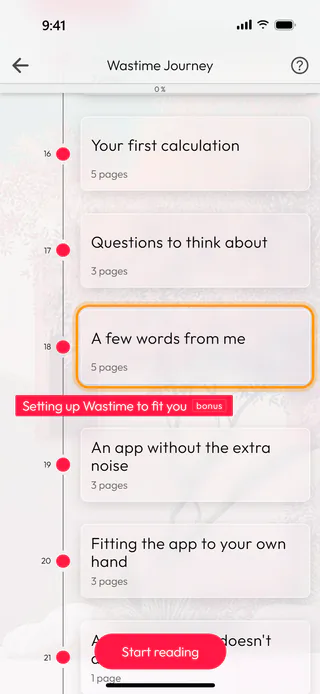
On the map, scroll down to the chapter Life Expectancy and tap its last section, A few words from me.
Read to the last page
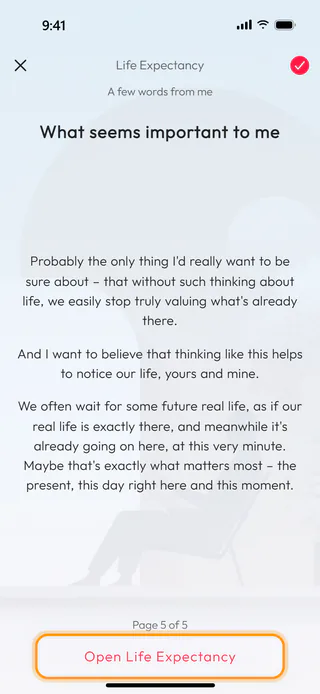
Tap Next until "Page 5 of 5". On this page the button under the text turns red and reads Open Life Expectancy. The chapter about the calendars ends the same way, with a button that opens Calendars.
Open the screen
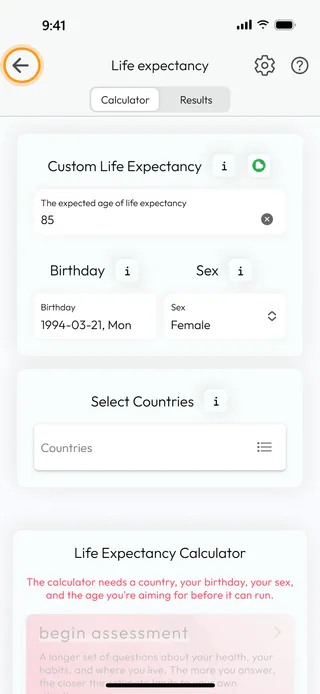
Tap the button, and the Life expectancy screen opens over the story, with your numbers in it, ready to look at or to change.
Come back to the story
The back arrow at the top left returns you to the same page of Journey. To read on without leaving for the screen, swipe left on the last page instead of tapping the button.
What's next
Estimate your life expectancy explains what can be done on that screen, and Set up your life calendar goes with the chapter about the calendars.

