 Wastime
Set up your life calendar
All the life calendar needs from you is the day you were born and the age you expect to reach. Every week it shows is counted from those two numbers, so until both are in place there is simply nothing for it to draw.
Steps
Open the setup
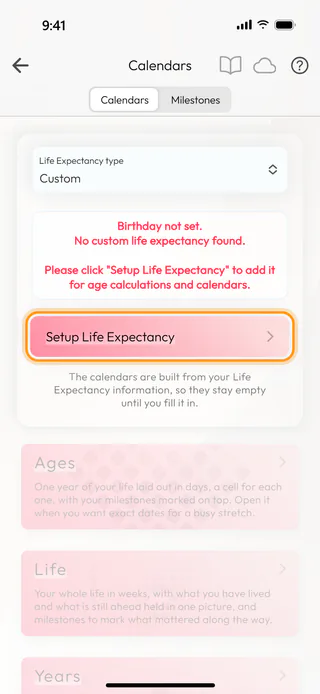
On the home screen, tap Calendars. While the calendar is still empty, the Calendars tab says "Birthday not set." and the cards below it stay pale and closed. Tap Setup Life Expectancy to fill in what is missing.
Enter the age you expect to reach
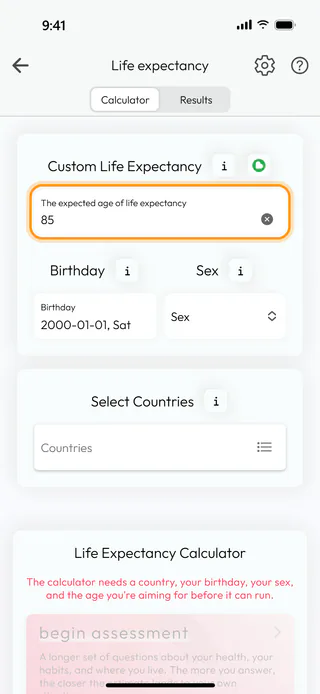
The Life expectancy screen opens. Type a number of years into the field under Custom Life Expectancy, anything from 1 to 120. Nobody knows this number for sure, and a round figure you feel comfortable with is a good place to start, since you can come back and change it whenever you like. The app saves it as you type, so there is no button to press.
Set your birthday
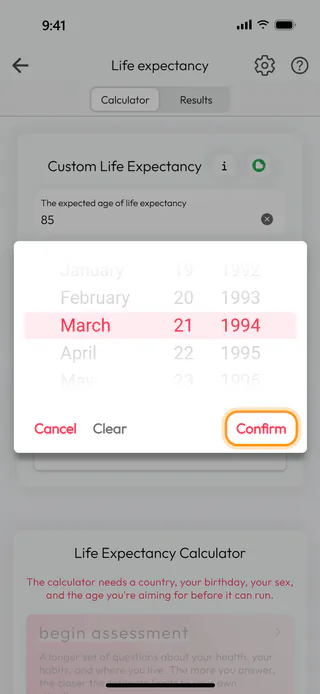
Tap Birthday. The date the field shows at first is only a placeholder and is not saved until you change it. Turn the month, day and year wheels to your birthday and tap Confirm.
Go back to your calendars
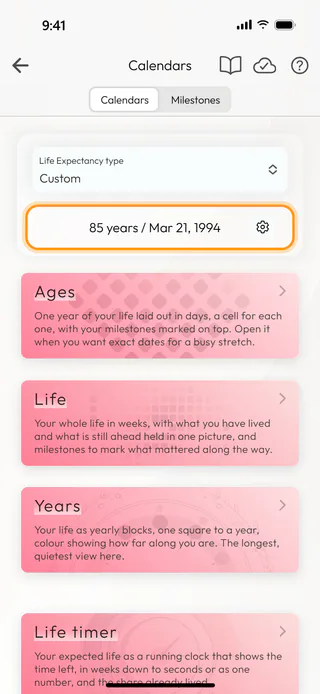
Tap the back arrow in the top left corner. The top of the Calendars tab now holds both numbers in one line, like "85 years / Mar 21, 1994", and the cards below it open up. As long as Life Expectancy type above that line reads Custom, the calendars use the number you have just typed, and the gear button at the end of the line brings you back to these settings later.
Open your life in weeks
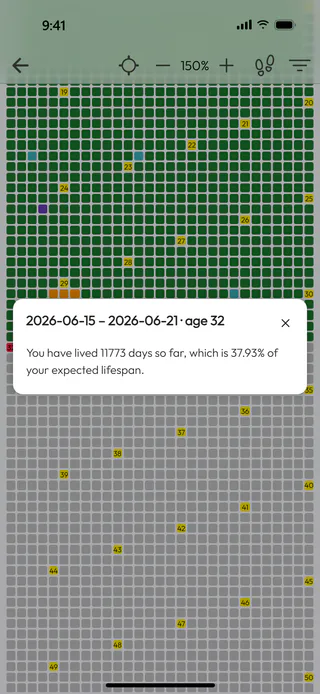
Tap Life. Every small cell is one week, the green ones already lived and the grey ones still ahead, with a yellow cell for each birthday along the way. On a phone the cells are small, and a few taps of the + button at the top make them larger, until each birthday shows the age you turned. The red cell that slowly pulses is the week you are in right now. Tap it to see how many days you have lived so far and what part of the whole that makes.
What's next
The grid starts to feel like your own once the moments that mattered appear on it, and Add a milestone to your life calendar shows how to mark the first one. When a week feels too coarse, Explore a year in days opens the year you are living now in Ages, one cell for each day, and Read your life in weeks explains what the cells and colors of the Life grid stand for. The Life Calendar page says more about what the calendar is for.

