 Wastime
Group and color milestones
Once there are more than a handful of milestones, it helps to gather the related ones under a theme, such as family, and give that theme a color of its own. The calendar can then show one part of your life by itself, and it becomes easier to see where a long stretch of years actually went.
Before you start
This guide moves milestones you already have into a group. If there are none yet, Add a milestone to your life calendar walks through the first one.
Steps
Open your milestone groups
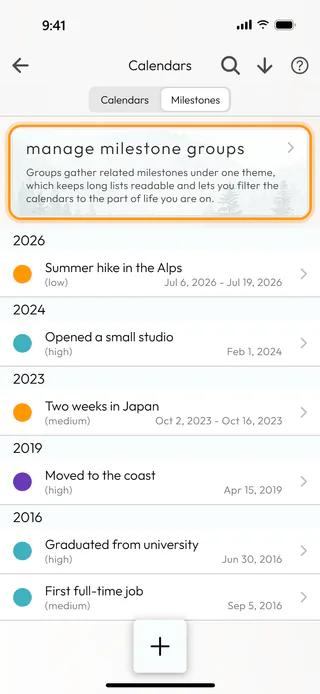
On the Calendars screen, switch to the Milestones tab and tap manage milestone groups at the top of the list.
Name a new group
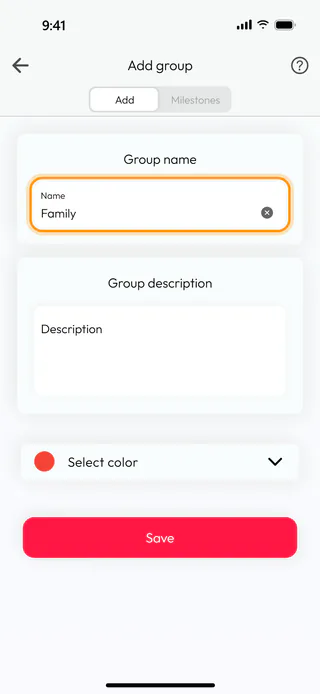
The Milestone groups screen lists the groups you have, each with the number of milestones in it. Tap the round + button at the bottom, and on the Add group screen type a name into Name. A few words in Description can remind you later what belongs in the group, although you can leave it empty.
Pick its color
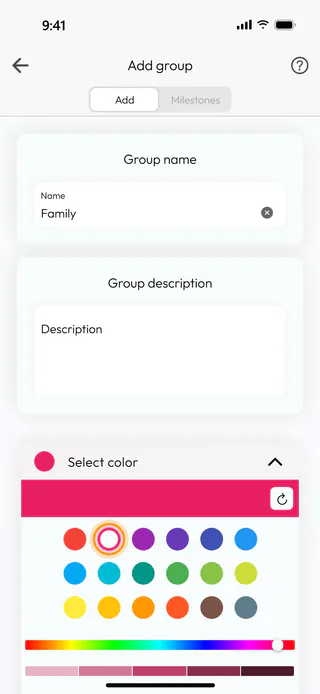
Tap Select color to open the palette and choose one of the circles. The slider below them adjusts the shade, and the round arrow on the colored strip brings back the color you started with.
Save the group
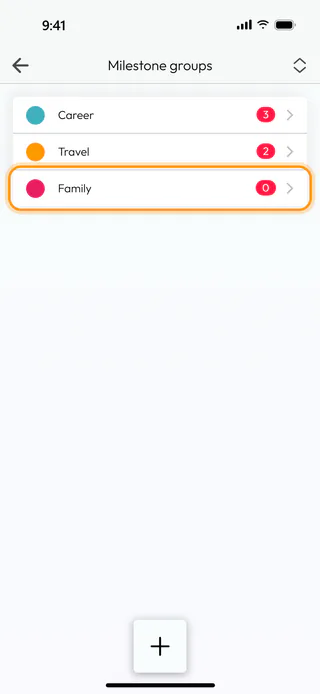
Tap Save. The app confirms with "Milestone group saved." and takes you back to the list, where the new group waits with no milestones in it yet.
Move a milestone into it
Go back to the Milestones tab and tap a milestone to open it. Tap Group, choose the new group in Select or create group, and tap Save. A milestone you already had keeps its own color when it joins a group, and the next step brings it in line. A milestone you create from now on takes the color of its group the moment you pick one.

Give its milestones the group's color
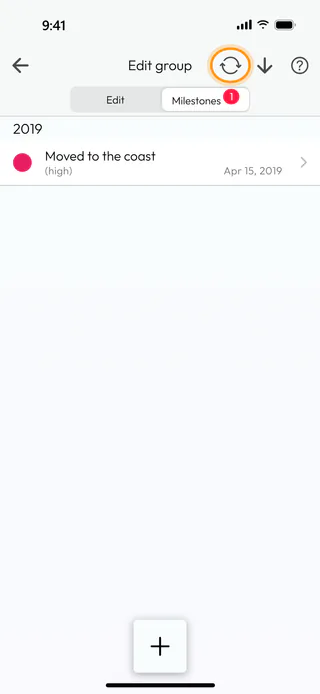
Open manage milestone groups again, tap the group and switch to its Milestones tab. Tap the button with two arrows going round at the top of the screen and answer Yes. Every milestone in the group now wears the group's color, and the app says "All life milestones were synced successfully."
Show one group on the calendar
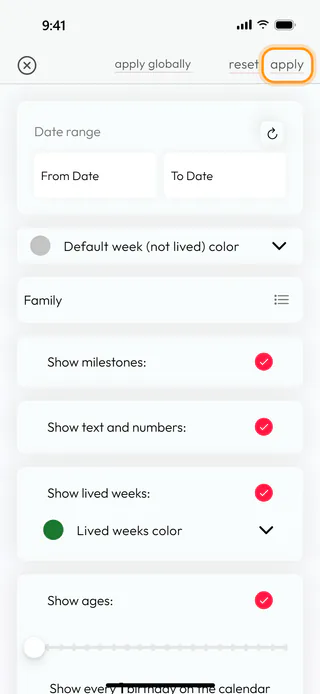
On the Calendars tab, tap Life, then the filter button in the top right corner, the one drawn as three lines. Tap Groups, tick the groups you want to see and tap Apply in the Select groups list, then tap Apply at the top of the filters. The calendar now shows only the milestones of those groups, and a milestone without a group stays out of sight until you untick the groups again.
What's next
Each calendar keeps its own choice of groups, so Ages can show a different part of your life from Life, while Years always shows everything. Apply globally carries the colors and display options of the filters over to the other calendars and leaves their groups as they were. To see one year of your life day by day in Ages, Explore a year in days walks through it. The Life Calendar page says more about what the calendar is for.

