 Wastime
Add a milestone to your life calendar
A milestone is a moment you want to keep in sight, whether it already happened or is still ahead of you. Once it has a date, its week on the life calendar takes on its color, and the grid slowly starts to look like your own life.
Before you start
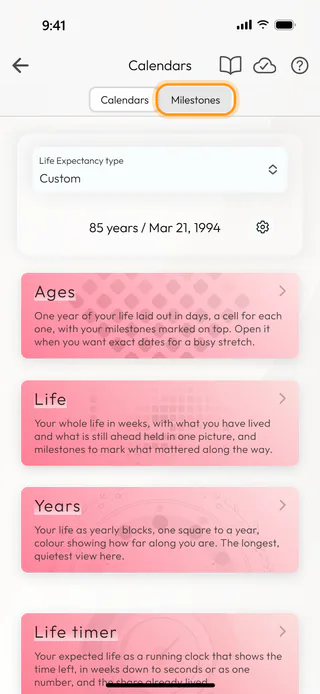
The calendars are drawn from your birthday and your life expectancy. You can add milestones before setting those, but they only appear on the grid once both are in place, so it is worth checking that the top of the Calendars tab shows a line like "85 years / Mar 21, 1994". If it does not, Set up your life calendar walks through both.
Steps
Open the Milestones tab
On the home screen, tap Calendars, then switch to the Milestones tab at the top.
Start a new milestone
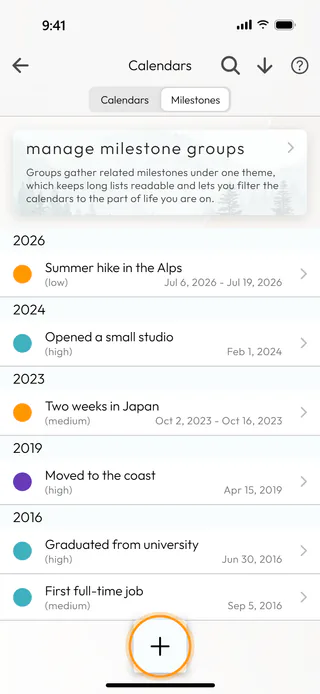
At the bottom of the list, tap the round + button.
Name the moment
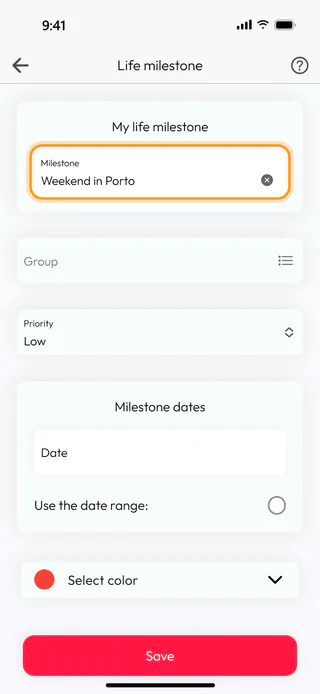
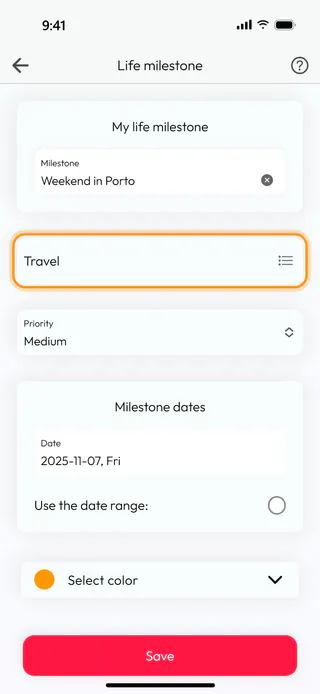
The Life milestone screen opens. Type a name into Milestone, short enough to recognize at a glance. If another milestone already has the same name, the app points it out below the form, and you can still save.
Choose the date
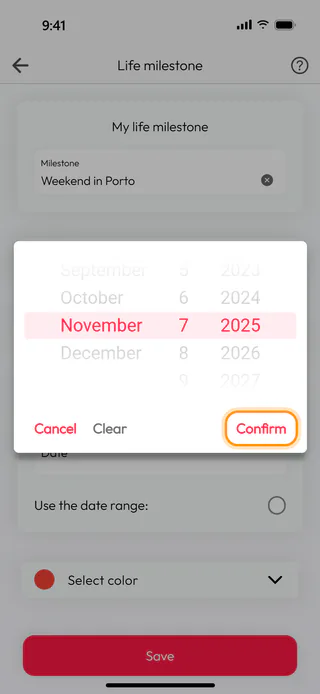
Tap Date, turn the month, day and year wheels to the day it happened, and tap Confirm. A milestone can also cover a stretch of time, like a two-week trip. In that case, tick Use the date range: and fill in Start Date and End Date the same way.
Add a group, priority and color
All three are optional. A group gathers related milestones under one theme, and choosing one also gives the milestone the group's color. Tap Group to pick a group from the list or to create a new one. Priority decides which of two overlapping milestones paints a week, unless one lies entirely inside the other, in which case the shorter one stays on top. Select color lets you choose a color of your own.
Save it
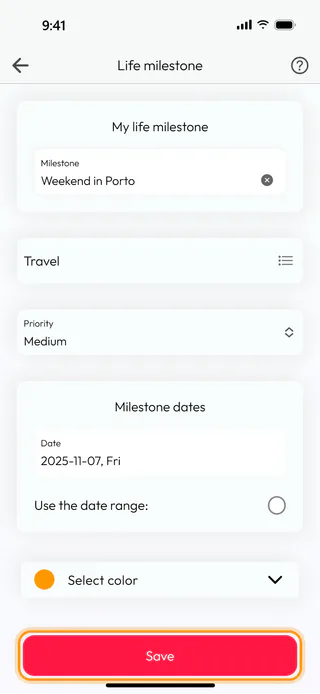
Tap Save. The app confirms with "Milestone saved." and takes you back to the list.
Find it on your calendar
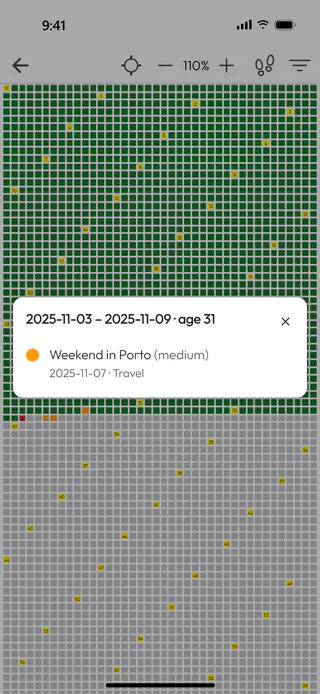
Switch to the Calendars tab and tap Life. The week of your milestone now carries its color. A tap of the + button at the top makes the cells a little larger and easier to hit with a finger, and then a tap on that week shows everything that happened in it, with the milestone that gave the week its color listed first.
What's next
When the moments are already written down somewhere, Import milestones with an AI assistant brings them in all at once. A saved milestone can always be changed later, and Edit, find and delete milestones shows how to find it again in a long list and correct it. As the list grows, groups keep it readable and let the calendars show one part of your life at a time, and Group and color milestones shows how to set them up. The Life Calendar page says more about what the calendar is for.

