 Wastime
Read your life in weeks
The Life calendar is your whole life on one screen, a small cell for every week of it. At first sight it is just a lot of green and grey, and it takes a closer look to see what each cell and color says, what a single week holds and how to leave on the grid only the milestones you want to see.
Before you start
The grid is drawn from your birthday and your life expectancy, which Set up your life calendar puts in place, and it says more with a few milestones on it, which Add a milestone shows how to add.
Steps
Zoom in on the grid
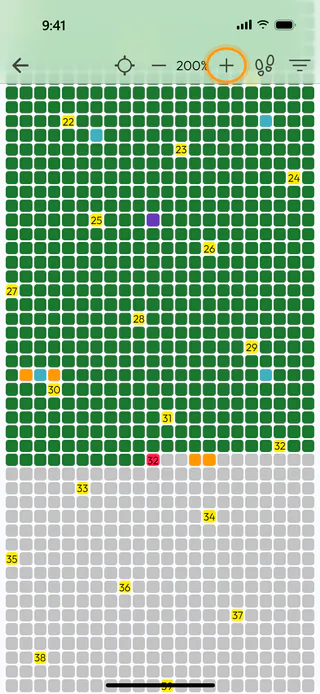
On the home screen, tap Calendars and then the Life card. The + and − buttons at the top make the cells larger or smaller, ten percent at a time, and the app keeps the size you chose for the next visit. Above 100%, the cells start to carry numbers, your age on the week of each birthday and your current age on this week.
Read the weeks
Each cell is seven days counted from your birthday, so a week starts on the weekday you were born rather than on a Monday. A row isn't a year either. Its length depends on the width of the screen and the zoom, and the years are marked by the yellow weeks of your birthdays. Green weeks are the ones you have lived, grey ones are still ahead, and the red one is this week. A milestone paints its weeks in its own color, so a two-week trip that starts on a Monday can touch three cells.
Open a busy week
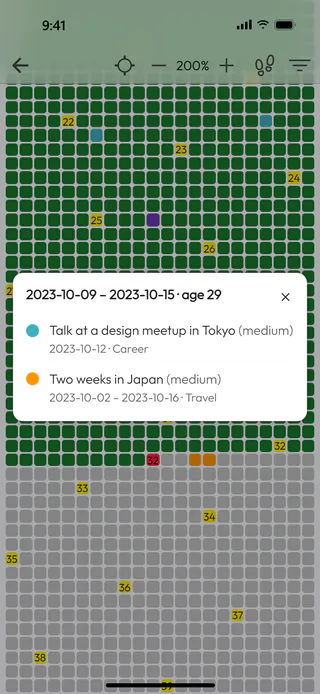
Tap a week in a milestone's color. The card that opens names the days of that week and your age, and lists every milestone that falls into it, starting with the one whose color the week shows. A short milestone that lies inside a longer one always comes first, and otherwise the higher Priority wins.
Choose the milestones to show
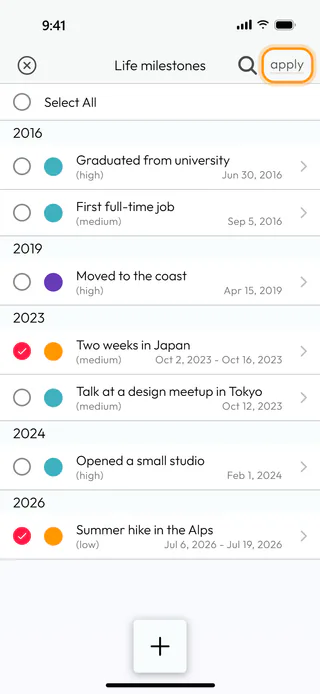
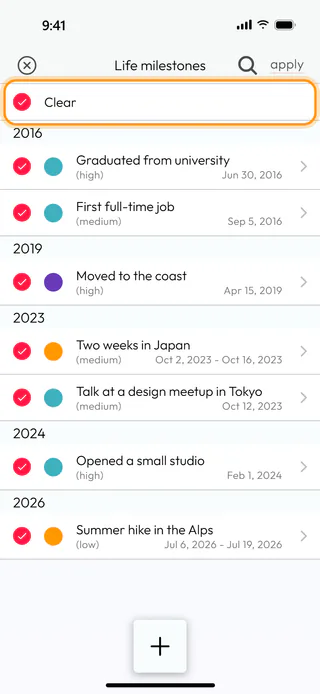
Close the card and tap the footprints button at the top. Life milestones lists all your milestones by year. Tap the ones you want to keep on the grid, so a tick appears next to each, and tap Apply.
See only what you chose
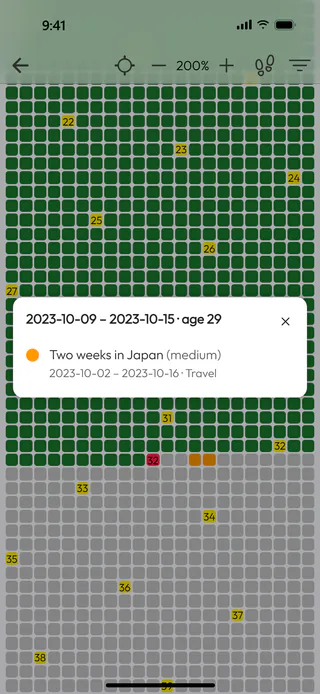
The grid now shows only the milestones you ticked, and the weeks of the others go back to green or grey. The same busy week from before is now in the color of the trip, and its card lists the trip alone.
Show everything again
Open the footprints list again. The top row reads Select All, and a tap on it ticks every milestone, after which the same row reads Clear. Tap Clear to untick them all, then Apply, and every milestone is back on the grid. It is worth knowing that Select All remembers the milestones it ticked, so one you add later stays off the grid until you tick it too or clear the list.
What's next
The target button at the top of Life opens Years, one square for each year, and See your life in years walks through it. A single year can be opened day by day, as Explore a year in days shows, and the colors and marks of the grid can be changed in Change calendar colors and filters. The Life Calendar page says more about what the calendar is for.

