 Wastime
Change calendar colors and filters
A whole life in weeks is a lot of cells at once. The filters let you narrow the calendar down to the stretch of years you want to look at, and decide what it marks and in which colors, so the picture says what you need it to say.
Before you start
The calendar needs your birthday and your life expectancy, and Set up your life calendar puts them in place. Showing the milestones of one group only is covered in Group and color milestones.
Steps
Open the filters
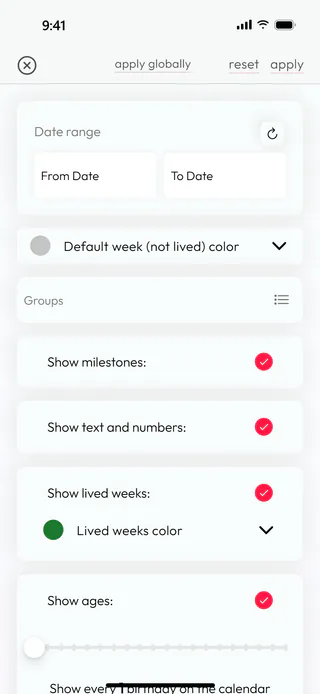
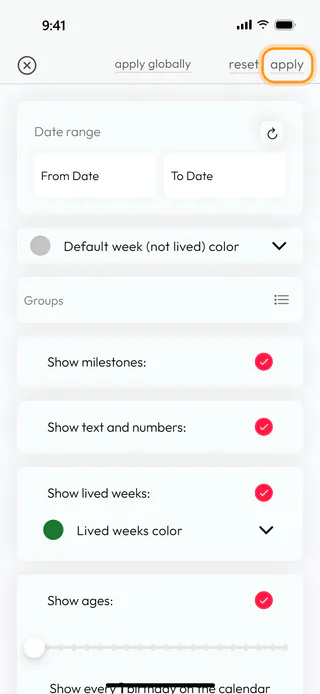
On the home screen, tap Calendars, then the Life card, and tap the button with three lines at the top right. The filters open over the whole screen, with Apply globally, Reset and Apply at the top.
Show only part of your life
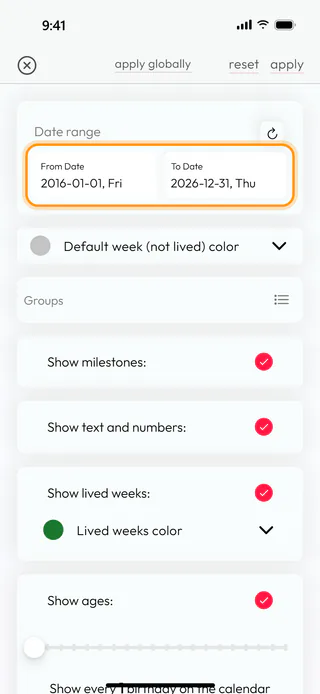
Under Date range, tap From Date, turn the wheels to the first day you want to see and tap Confirm, then do the same with To Date. One field is enough if you only want to cut off one end, and the round arrow next to Date range empties both.
Recolor the weeks you have lived
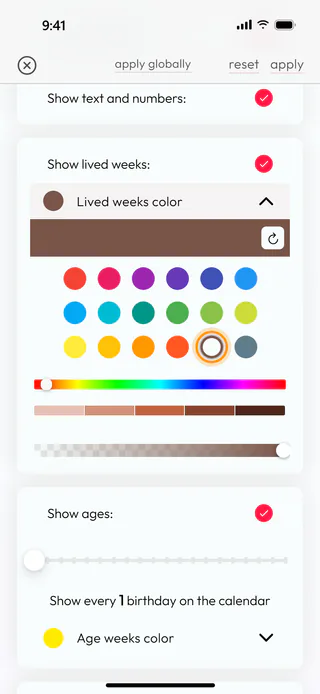
Tap Lived weeks color and pick a circle from the palette, or set the shade with the sliders under it. In the same way Default week (not lived) color paints the weeks still ahead, Age weeks color your birthdays and Current week color this week. The round arrow at the top of a palette brings back the app's own color.
Choose what the calendar marks
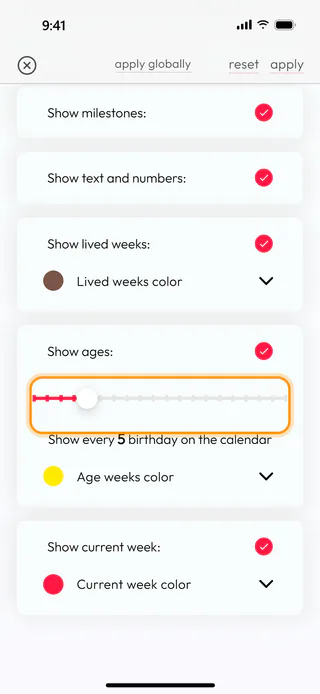
The ticks decide what the grid shows. Show milestones: paints the weeks of your milestones, Show text and numbers: puts the ages into the cells, Show lived weeks: keeps the weeks behind you in their own color, and Show current week: marks this week. Show ages: marks the weeks of your birthdays, and the slider under it can leave only every second, fifth or tenth of them, counted from the day you were born. The numbers only appear on the grid when it is zoomed in above 100%.
Apply the changes
Tap Apply. The filters close, and the Life calendar shows only the years you chose, in the colors you picked. The app remembers the filters until you change them again.

Use the same look in Ages and Years
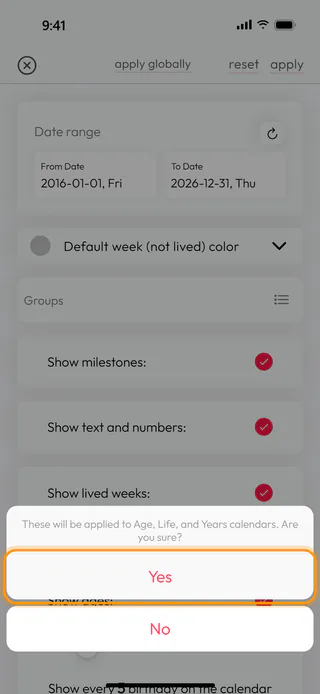
Apply changes only the Life calendar. To give Ages and Years the same colors and the same ticks, tap Apply globally and answer Yes. The dates, the birthday slider and the groups stay with Life, since the other two calendars don't have them.
Start over
Tap Reset and answer Yes to bring the filters back to how they were at the start. The window stays open and the grid doesn't change until you tap Apply. Reset leaves the chosen groups, the zoom and the milestones picked under the footprints button as they are.
What's next
Read your life in weeks explains what the cells and colors stand for, and See your life in years shows the calendar with a square for each year. The Life Calendar page says more about what the calendar is for.

