 Wastime
Write an age story
A date on its own says little about the year it belongs to. An age story keeps that year in your own words, as titles and paragraphs, and the milestones of the year can be mentioned right in the text, so they stay one tap away from the story.
Before you start
Stories belong to the years of your life calendar, so your birthday and life expectancy need to be set, as Set up your life calendar shows. A story can mention only the milestones of its own year, which you add the way Add a milestone to your life calendar describes.
Steps
Open the stories
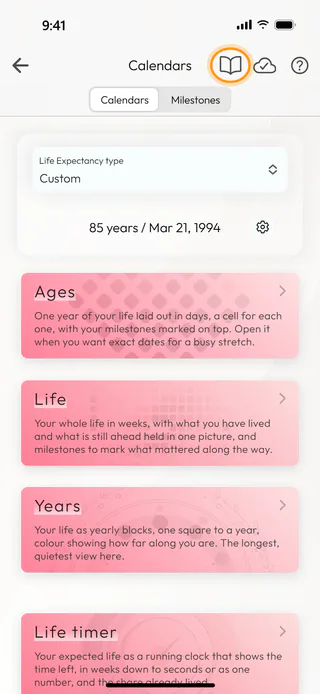
On the home screen, tap Calendars and, on the Calendars tab, tap the book at the top. It opens the story of the year you are living now. When you are looking at another year in Ages, the middle button at the bottom opens the story of that year instead.
Start a story
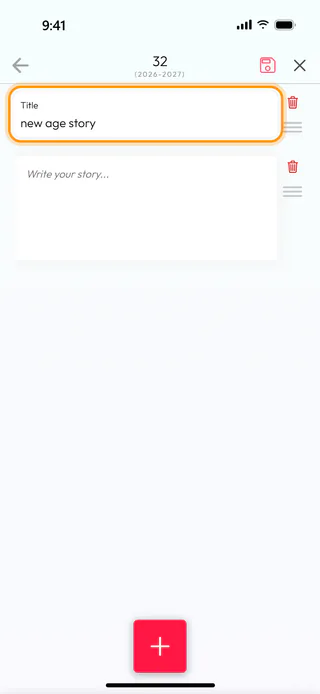
A year without a story says "There are no life stories for this age yet". Tap the pencil at the top right, then the + button under "Tap the + button to start a story for this age". The story begins with a Title block that says "new age story" for now, and an empty paragraph waiting for your words.
Give it a title and write
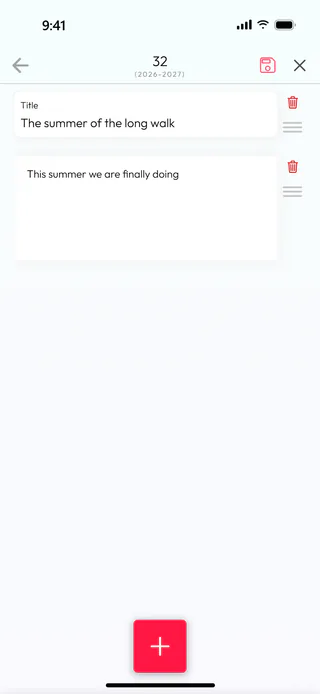
Replace the placeholder with a title of your own, then tap the paragraph and start writing. While you type, a bar above the keyboard lets you make words bold or italic, set a quote apart or turn lines into a list.
Mention a milestone
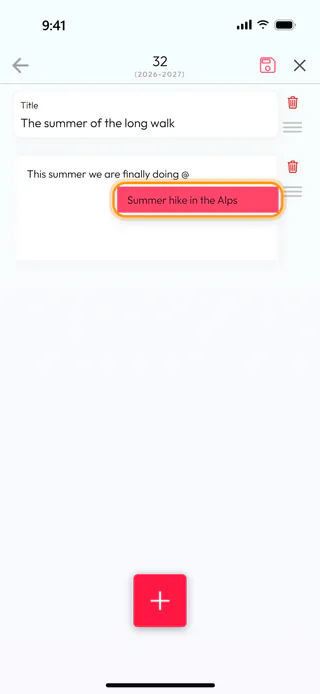
Type "@" in a paragraph, and a list of this year's milestones opens under it. Keep typing to narrow it down, then tap the one you mean, and it appears in the text in color. If the list says "No milestones found for this year", no milestone has a date within this year yet.
Add more blocks
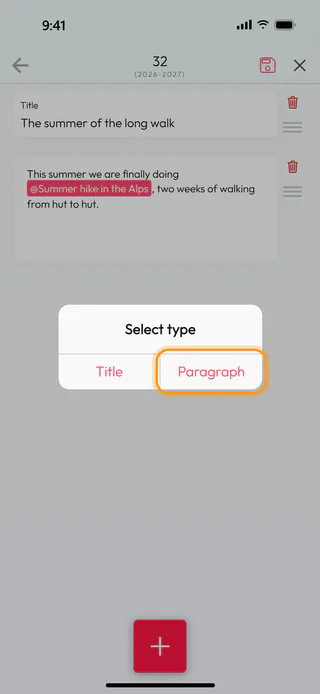
The + button at the bottom adds a block at the end of the story. In Select type, choose Title to start a new part under its own heading, or Paragraph to keep writing. The bin next to a block removes it after asking "Are you sure?", and the handle under the bin lets you drag a block to another place.
Save the story
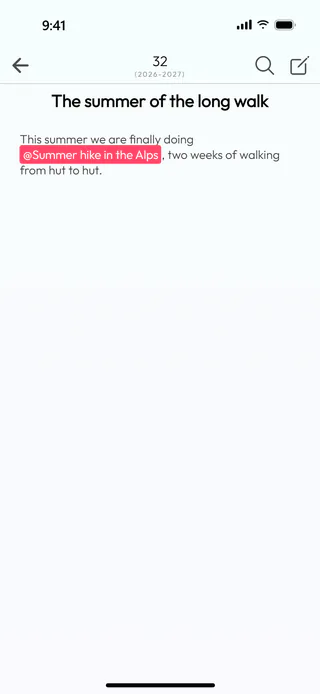
Tap the button shaped like a floppy disk at the top. Editing ends, and the story appears the way it will read, with the mentions highlighted. If you close the editor with the cross instead, the app asks "Discard changes?", and Yes goes back to the version you saved last.
Read a story you wrote earlier
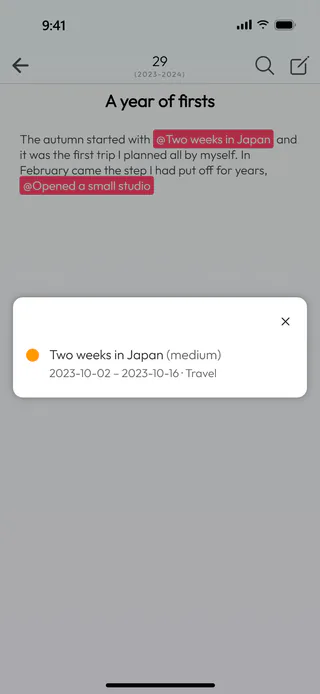
To look back at another year, tap the magnifier at the top, type the age into Search ages and tap it in the list. A tap on a mentioned milestone opens a card with its dates and its group, so the details stay close to the story they belong to.
What's next
The days of each year are laid out in Ages, and Explore a year in days shows how to read them. The Life Calendar page says more about what the calendar is for.

