 Wastime
See how a topic adds up
A single total says little about how an activity really fits into your weeks. The screen of a topic lays its hours out day by day, shows how regularly you came back to it and works out where the pace you keep now would lead, and whether that matches what you want is for you to judge.
Before you start
You need a topic with a few entries in it. Add a topic shows how to create one, and the entries come from Time Entry, where each of them is a duration, a topic and a day, as Log your time shows.
Steps
Open a topic
On the home screen, tap Topic Manager. The screen opens on Wasted, so tap Meaningful first. The list keeps to the names of your topics, and everything else lives inside each of them. Tap Learning Spanish.

Look through its history
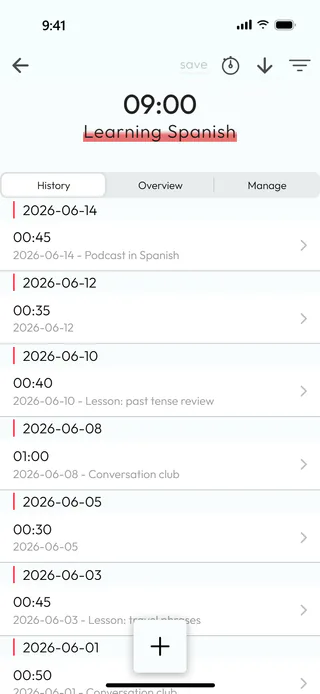
At the top sits the total, here 09:00, with the name of the topic under it. Below are three tabs, History, Overview and Manage, and the topic opens on History, where the entries are grouped under their dates, each with its duration and its description if it has one. Tapping an entry opens it for editing, the way Edit or delete an entry shows. The arrow at the top right turns the order around, and the filter beside it finds entries by date, length or a word in the description, putting the total of what it found above the full one.
Add time from the topic
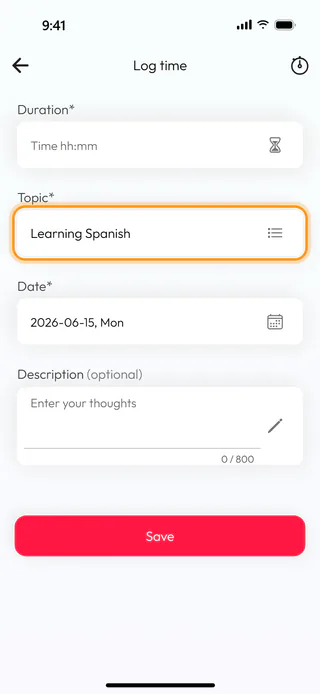
The round + button at the bottom opens Log time with the topic and its side already chosen and today's date filled in, so all that is left is the duration and, if you like, a few words about the session. Once you save it, the entry appears in this history and the total grows.
Read the overview
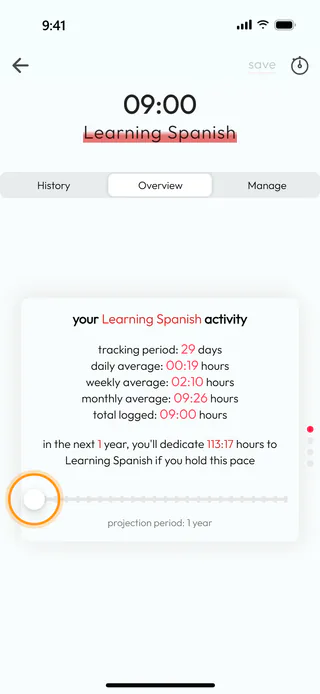
Tap Overview. The first card sums up the activity since your first entry. Here it covers a tracking period of 29 days with 09:00 logged in all, which comes to 00:19 a day, 02:10 a week and 09:26 a month. Under the figures the app works out where the current pace leads, "in the next 1 year, you'll dedicate 113:17 hours to Learning Spanish if you hold this pace", and dragging the slider stretches that look ahead from one year up to twenty-four.
See how regular you are
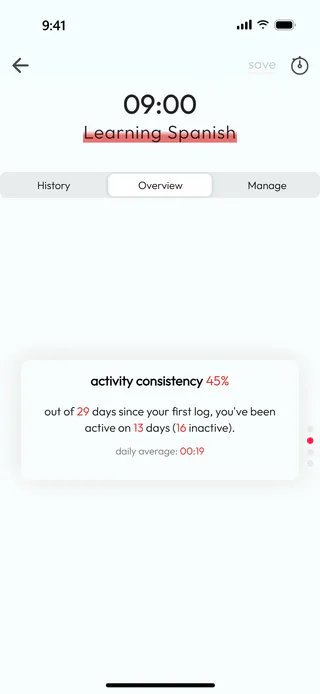
Swipe up, or tap the second dot on the right edge, to reach the next card. It shows how often you came back to the topic, here "activity consistency 45%", which means 13 active days out of the 29 since the first entry. A meaningful topic has two more cards after this one, for time goals and a deadline, and they stay empty until you set those on the Manage tab, while a wasted topic ends with these two.
What's next
A quota or a number of active days a week gives the last two cards something to measure your weeks against, and Set a goal for a topic shows how to set them on the topic's Manage tab. The Time Diary page tells more about keeping a diary of your hours.

