 Wastime
Log your time
One entry is enough to begin with, a duration and the topic it belongs to. The topic can be named right in the form, and once the entry is saved, the top of the screen works out where a pace like that would lead if it held for ten years, which tends to make three quarters of an hour look a little different.
Before you start
Nothing needs to be set up first, neither an account nor a list of topics. If you would rather begin with a topic and a note on what counts towards it, Add a topic shows how, though it is not required.
Steps
Open Time Entry
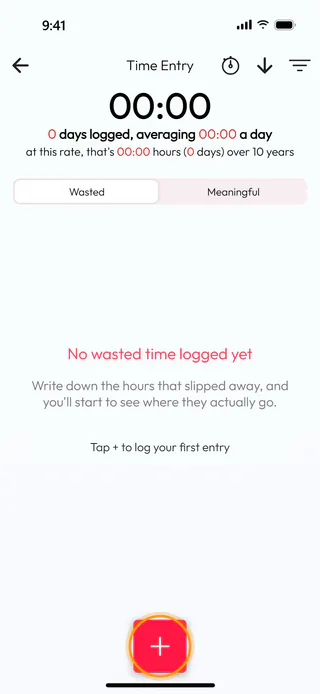
On the home screen, tap Time Entry. The screen opens on Wasted, the side for time you would rather take back, and Meaningful next to it holds the time you want more of. An entry lands on the side that is open when you add it. With nothing logged yet, the screen says "No wasted time logged yet" and the totals at the top stand at zero. Tap the round + button at the bottom.
Set how long it took
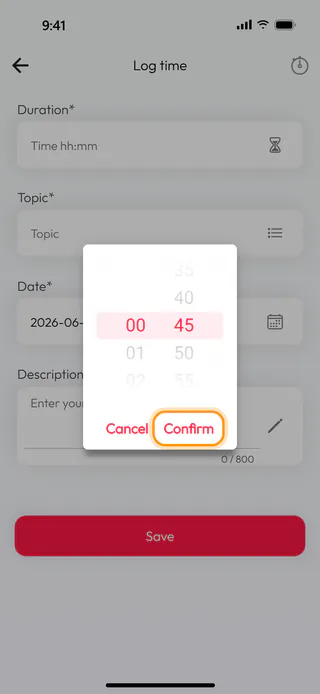
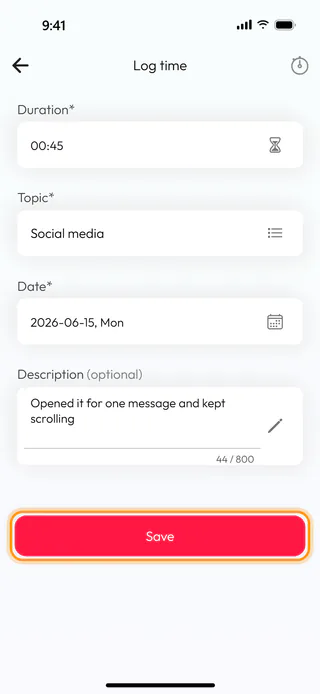
The form Log time opens with four fields, Duration*, Topic*, Date* and Description. Tap Duration*, and a small window with two wheels appears, hours on the left and minutes in steps of five on the right, up to 23:55 for a single entry. Turn them to the length of the session, here 00:45, and tap Confirm.
Name the topic
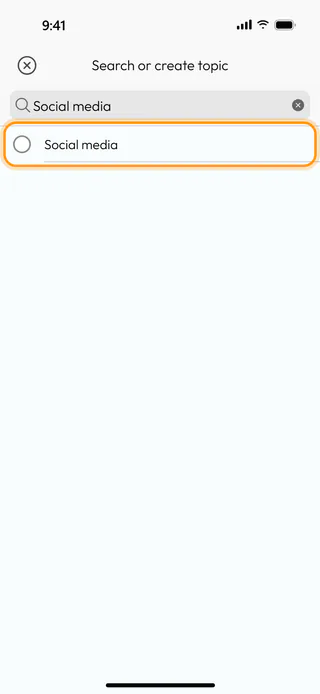
Tap Topic*. The window Search or create topic lists the topics of the side you are on, and with none there yet it starts empty. Type the name of the activity into the search, here Social media, and it appears as a row of its own with an empty circle in front of it. Tap that row.
Confirm the new topic
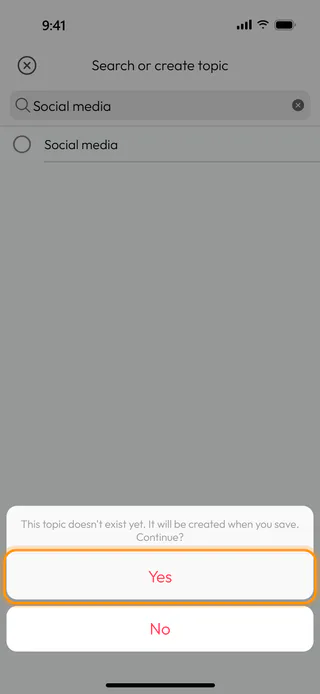
The app asks "This topic doesn't exist yet. It will be created when you save. Continue?". Tap Yes to keep the name, or No to go back and type another one. The topic is made only when you save the entry, on the side the entry belongs to, and a form left without Save creates nothing at all.
Add a note and save
Date* already holds today, here 2026-06-15, and a tap on it lets you pick another day if the session was yesterday. Description is optional and takes up to 800 characters, a line like "Opened it for one message and kept scrolling" that will mean something to you in a month. Tap Save. If a required field is still empty, its name turns red and nothing is saved until it is filled in.
See where it adds up
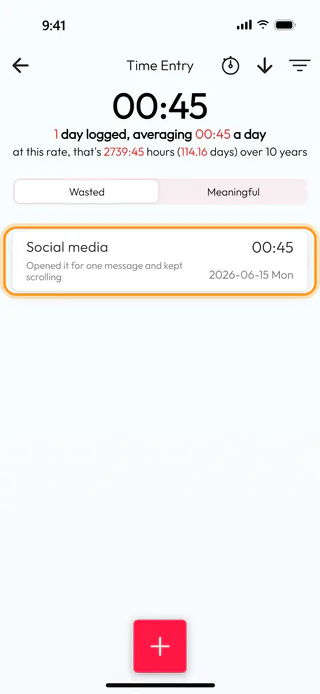
The entry appears in Time Entry with its topic, duration, note and date, and the top of the screen counts it. Here it reads 00:45, "1 day logged, averaging 00:45 a day", and "at this rate, that's 2739:45 hours (114.16 days) over 10 years". After this first entry the app says nothing more, since there is nothing to compare it with yet, and from the second entry on it tells you for a few seconds how each one moved your average.
What's next
An entry can be corrected or deleted later, as Edit or delete an entry shows, and Time an activity with a timer lets the app count the next session for you. Once a few entries are in, See how a topic adds up shows what they come to. When you are not sure whether an activity belongs on the wasted side at all, Identify a wasted topic weighs it up with a few questions, and the Time Diary page tells more about keeping a diary of your hours. After a week or two of entries, Look back on your logged hours adds them up by the week, and Set a reminder to log your time has the app remind you in the evening. To sketch the whole day before the entries show where it really went, Lay out your day in 24 hours lays it out block by block in 24h.

