 Wastime
Identify a wasted topic
Some activities clearly earn their hours and some clearly do not, and in between are the ones you keep going back and forth on, like the news you check a few more times a day than you meant to. Topic Manager has a short set of questions for those. The answers are yours alone and the app keeps none of them, so all that can come out of it is a topic with the activity's name, and only if you decide it belongs on the wasted side.
Steps
Open the guide
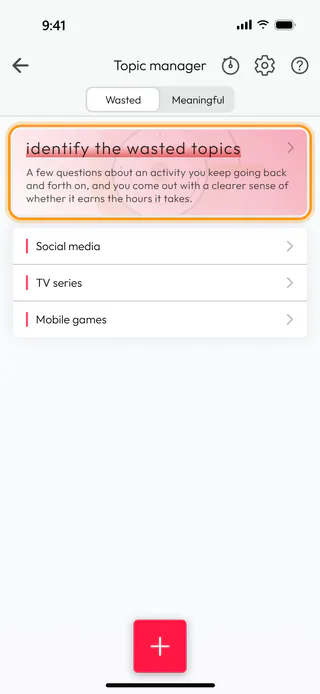
On the home screen, tap Topic Manager. The screen opens on Wasted, and above the list of wasted topics sits the card identify the wasted topics, made for an activity you cannot quite place. Tap the card. When you already know that an activity belongs on this side, the round + button at the bottom creates the topic straight away, as Add a topic shows.
Name the activity
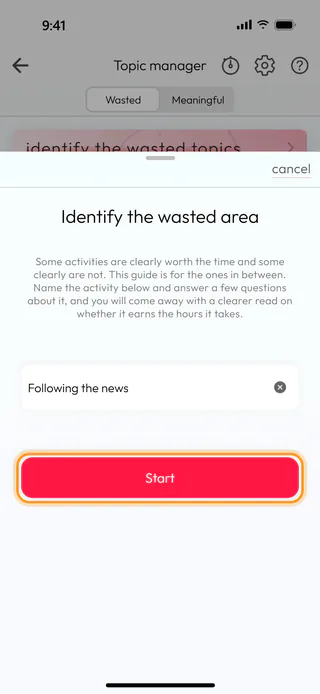
A sheet called Identify the wasted area slides up. Type the activity into its only field, here Following the news. Start cannot be tapped while the field is empty and turns active as soon as there is a name in it, and Cancel at the top closes the sheet if you would rather leave it for another time. Tap Start.
Answer the first question
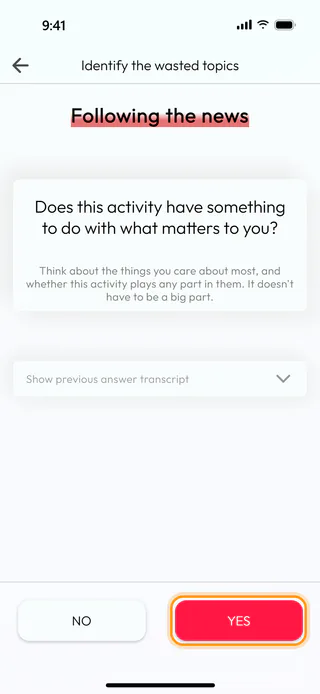
The screen Identify the wasted topics puts the name you typed at the top and one question at a time under it, with a line or two on how to think it over. The first question is "Does this activity have something to do with what matters to you?", and you answer it with YES or NO at the bottom. Here the answer is YES, because knowing what goes on in the world does matter, even when the habit has grown bigger than that. Depending on where the answers lead, the questions end after three or four of them.
Keep answering
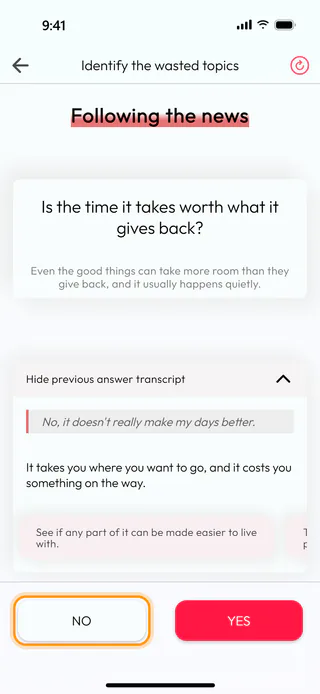
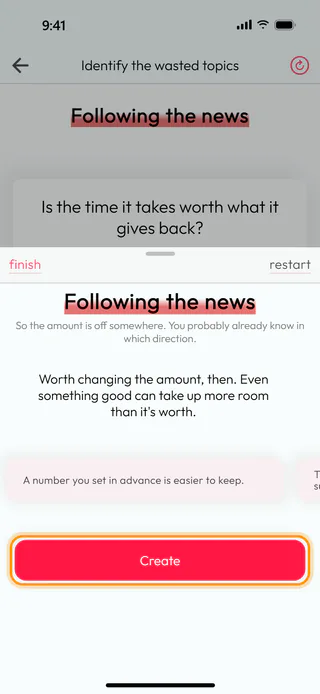
Each answer brings the next question into the same card. From the second question on, the strip Show previous answer transcript opens the answer you just gave in a sentence of its own, with what it suggests and a row of tips you can swipe through. Here the second answer was NO, so the strip quotes "No, it doesn't really make my days better.", and the question now asks "Is the time it takes worth what it gives back?". A single question cannot be taken back, though the round arrow at the top right starts the whole thing over from the first one. Tap NO.
Read the result and create the topic
The last answer opens a sheet with what your answers add up to. For Following the news it reads "Worth changing the amount, then. Even something good can take up more room than it's worth.", and a row of tips follows. Finish at the top left closes the sheet without creating anything, while Restart brings back the first question for the same activity. When the result finds that an activity sits about where it should, Create only appears after you tick I would like to create anyway. Tap Create.
Find it under Wasted
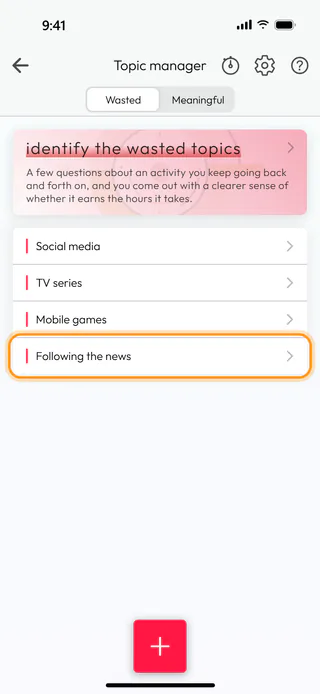
The app takes you back to Topic manager, where Following the news is now the last topic on Wasted. It carries the name and nothing else, since the answers stay behind with the questions, and a note on what counts towards it can be added later on the topic's Manage tab, as Change or delete a topic shows. From here on it works like any other wasted topic, with entries of its own and a timer.
What's next
Entries for the new topic are written the way Log your time shows, and the next time it happens, a timer can count it for you, as Time an activity with a timer shows. Once a few entries are in, See how a topic adds up shows what they come to over the weeks. The deck wasted topics in Questions goes further into habits like this one, and Reflect on a question shows how a deck works. For the hours the habit took before your first entry, Add up what a habit has taken gives an estimate in Wasted over a stretch of the past you choose.

