 Wastime
Set a goal for a topic
A goal here is a number you pick yourself, and Overview simply puts your real weeks next to it. Whether a week below the line was a bad week or simply a busy one is yours to judge, and a goal that keeps feeling wrong can always be changed on the same tab.
Before you start
You need a meaningful topic with a few entries in it, since goals belong to the meaningful side only. Add a topic shows how to create one and Log your time how to fill it. A topic with no entries yet says "Too early to say anything useful" on Overview, and the goals start to show once the first entry is in.
Steps
Open the topic's Manage tab
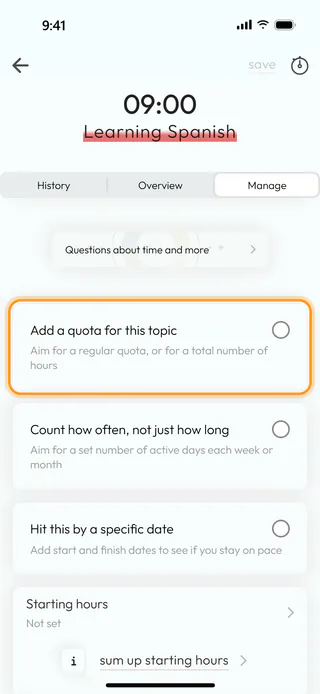
On the home screen, tap Topic Manager, switch to Meaningful and tap the topic, here Learning Spanish. Switch to Manage and scroll down past the name and the note to three cards that each start with a checkbox, Add a quota for this topic, Count how often, not just how long and Hit this by a specific date. Tap the first one.
Set a weekly quota
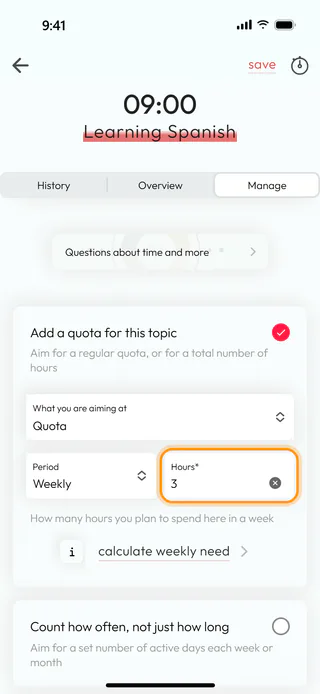
The card opens a little further. In What you are aiming at, pick Quota, then set Period to Weekly and type the hours into Hours*, here 3, which the line under the fields reads as "How many hours you plan to spend here in a week". A Daily quota is entered as hours and minutes on a pair of wheels, and Total hours in place of Quota sets one sum for the whole run of the topic. If you would rather have the number worked out for you, Calculate weekly need opens a calculator, and what it comes to is typed into the field by hand.
Count active days and save
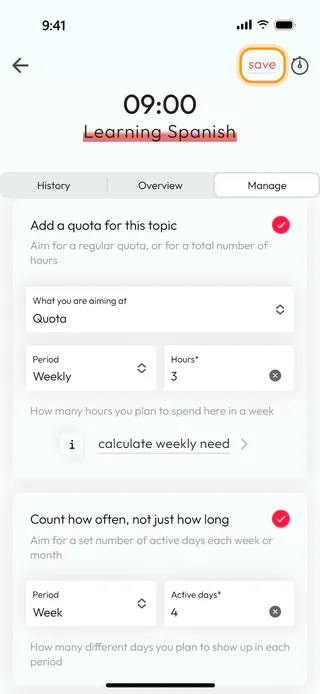
The second card looks at how often you come back to the topic. Tick Count how often, not just how long, set Period to Week and type the number into Active days*, here 4, so that the three hours spread over four short sessions rather than one long Sunday. Save at the top turns red once every field of the form is in order. Tap it, and the app says "Changes saved". If you try to leave with the changes unsaved, it asks "You have unsaved changes. Discard?" and offers Discard and Stay. The third card, Hit this by a specific date, takes a Start date* and a Deadline* and shows on Overview how much of the time between them has already passed.
See how you're doing
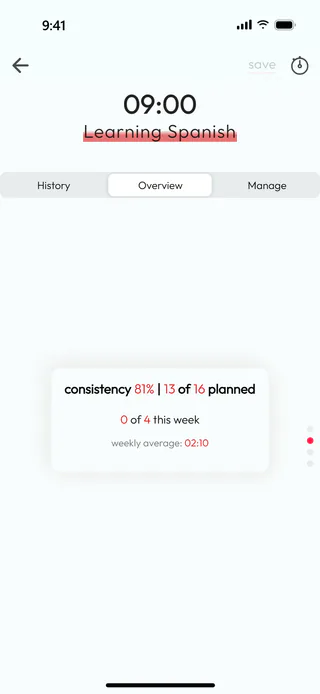
The goals reach Overview the next time you open the topic, so go back to the list and tap Learning Spanish again, then switch to Overview and swipe up, or tap the second dot on the right edge. The card reads "consistency 81% | 13 of 16 planned", which means that the four weeks before this one held 13 of the 16 active days you aimed for, and "0 of 4 this week" counts the week that has only just begun. The next card does the same for the hours and reads "00:50 below your 03:00 week target", against a weekly average of 02:10.
What's next
The averages and the look ahead on the first card are explained in See how a topic adds up, and a timer saves you from guessing how long a session lasted, as Time an activity with a timer shows. A topic you kept up long before the app can bring that time in, as Add hours you spent before shows, and the same Manage tab holds what else a topic can change, as Change or delete a topic shows.

