 Wastime
Sort and filter your entries
A long diary hides its patterns, like the evenings that keep ending the same way. Narrowed down to one habit or one word in your notes, it shows how often that moment comes back, and the totals at the top count only what is left on the screen, so you can see, for instance, how many hours of scrolling ended up in bed.
Before you start
You need a few entries in Time Entry, ideally some of them with a short description, since the search looks through those. Log your time shows how they are written.
Steps
Change the order
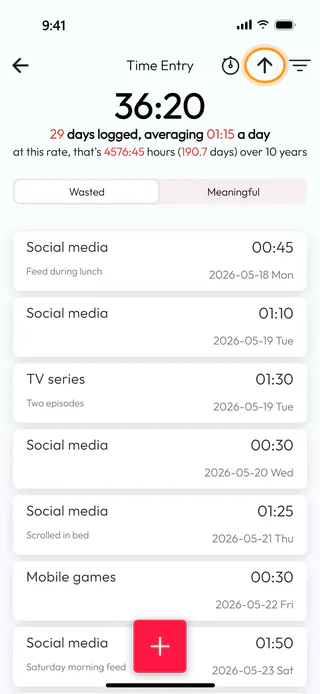
On the home screen, tap Time Entry. The list shows the latest entries first, and the arrow at the top right turns it around. Tap it, and the arrow now points up with the oldest entries at the top, here the very first one from 2026-05-18. The order follows the day each entry belongs to, a second tap brings the newest back to the top, and Wasted and Meaningful each keep an order of their own.
Choose a topic
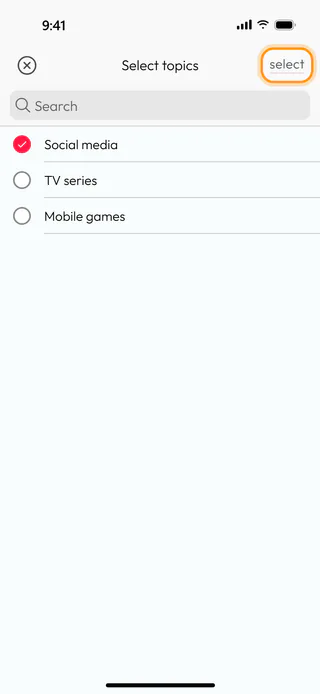
Tap the filter button next to the arrow, the one with three lines, and the window Filter opens for the side you are on. Tap the field Topics, and in Select topics tick the topic you want to look at, here Social media. You can tick several at once. Tap Select.
Search the descriptions
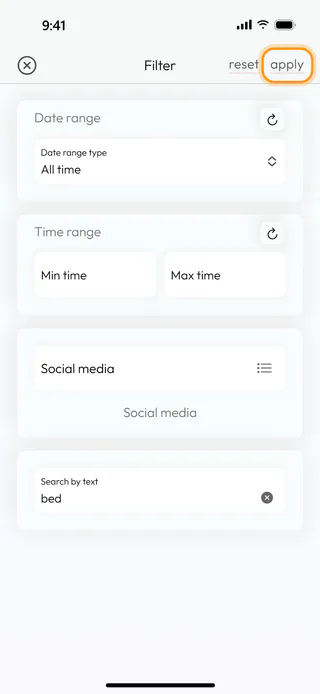
Back in Filter, type a word into Search by text, here bed. It looks only through the descriptions of the entries, whatever the case of the letters, so an entry without a description never turns up in a search. Above it, Date range type narrows the list to a period such as Last 7 days, or to your own dates with Custom range, and Min time and Max time under Time range keep only entries of a certain length. Tap Apply.
See what the slice adds up to
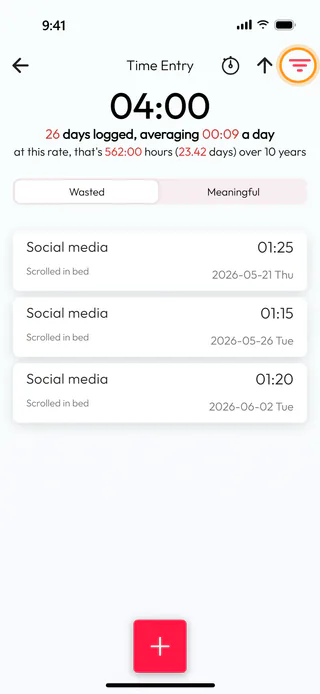
The list now holds three evenings of "Scrolled in bed", and the totals at the top count only them. Here they come to 04:00, "26 days logged, averaging 00:09 a day", and "at this rate, that's 562:00 hours (23.42 days) over 10 years". The filter button turns red while a filter is on, which is worth remembering, since an entry the filter leaves out is missing from the totals as well.
Clear the filter
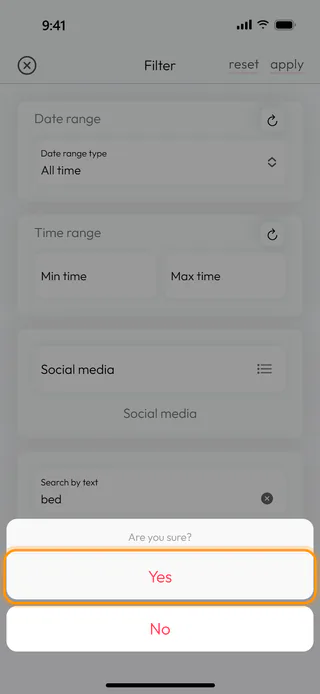
A filter stays in place until you take it off, even after the app is closed, so the next time the totals look strangely small it may simply still be on. To clear it, tap the red filter button, then Reset. The app asks "Are you sure?", and Yes puts every field of the window back the way it started. The change takes hold once you tap Apply, and then the full list and its totals come back.
What's next
A single topic has a filter of its own on its History tab, as See how a topic adds up shows, and any entry the filter turns up can be corrected the way Edit or delete an entry describes.

