 Wastime
Time an activity with a timer
Putting a day back together from memory in the evening is where most of the guessing creeps in, and a session of practice that felt like an hour may well have been forty minutes. A timer simply counts while you are busy with the thing itself, and once you finish, the session becomes an ordinary entry with the exact length behind it.
Before you start
You need a topic, since every timer belongs to one, and each topic gets a timer of its own. Add a topic shows how to create one.
Steps
Open Timers
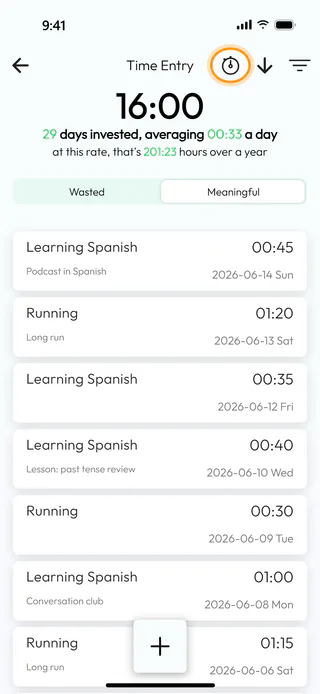
On the home screen, tap Time Entry and switch to Meaningful, where the topic of this example lives and where the total reads 16:00 for now. Tap the stopwatch button at the top. The same button sits at the top of Topic Manager too, and inside a topic it opens that topic's own timer straight away. In Log time it becomes available once you pick a topic you already have, and there Complete fills in Duration* of the form instead of saving an entry of its own.
Start the timer for a topic
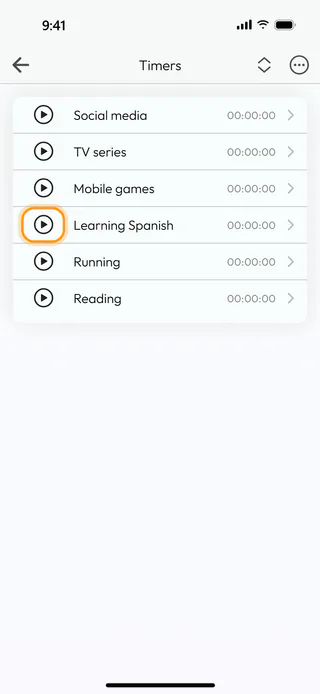
The screen Timers lists a timer for each of your topics, every one of them at 00:00:00 to begin with. The button with three dots at the top right narrows the list to All, Wasted or Meaningful. Tap the round play button next to the topic you are about to spend time on, here Learning Spanish.
Open the running timer
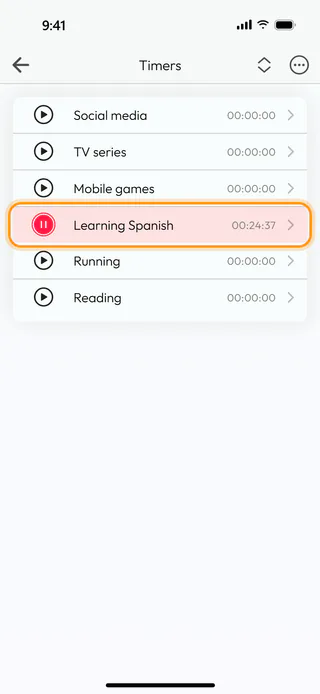
The row of a running timer turns pink, its button becomes a red pause and the time starts to climb. It goes on counting when you leave the screen or close the app, and only one timer runs at a time, so starting another one pauses this one with its time kept. Here the session has been going for 00:24:37. Tap the row itself to open the timer.
Finish with Complete
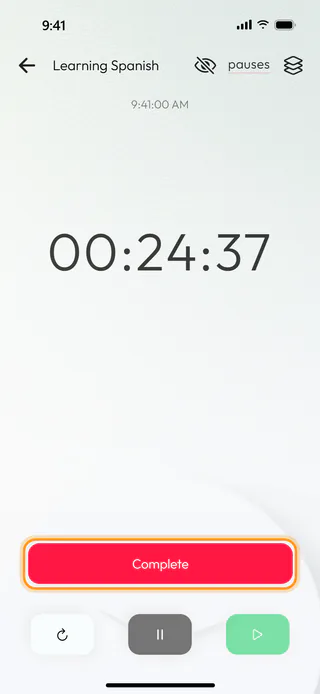
The timer opens over the whole screen, with the topic at the top, the time of day under it and the session in large numbers, here 00:24:37. The buttons along the bottom restart, pause and start it again, and Pauses at the top lists the breaks you took, which do not count towards the time. When you are done, tap Complete.
Check the entry and save it
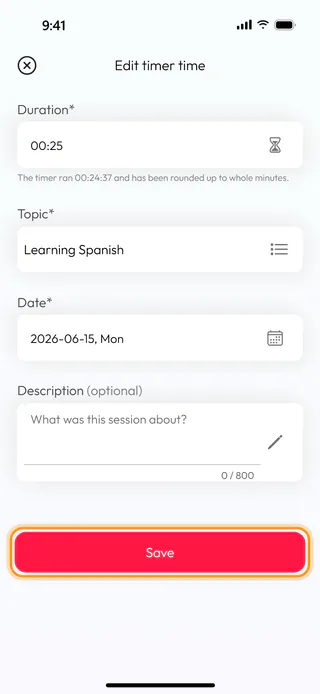
Edit timer time opens with the entry ready. Duration* reads 00:25, and the line under it explains "The timer ran 00:24:37 and has been rounded up to whole minutes.". Topic* is the topic of the timer and Date* is today. The duration and the date can still be changed here, a short note goes into Description, and then you tap Save.
Find the entry in Time Entry
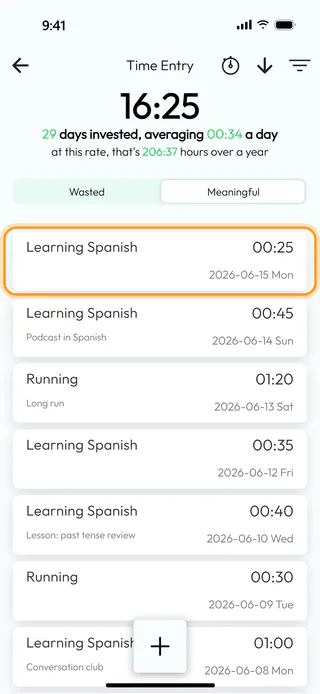
The app tells you for a few seconds how the session moved your average and takes you back to Timers, where the timer is at 00:00:00 again. Go back to Time Entry, and the new entry sits at the top of Meaningful, where the total has grown to 16:25, averaging 00:34 a day.
What's next
A timed entry can be corrected later like any other, as Edit or delete an entry shows, and the topic itself shows what all its sessions add up to, as See how a topic adds up explains.

