 Wastime
Add hours you spent before
Few things start on the day you begin to track them, and a topic like Reading may carry years of evenings with a book behind it. Starting it at zero makes every number after it a little untrue, so Starting hours lays a rough amount of that earlier time over the days it belongs to. It stays an estimate you shape yourself, and the app shows exactly what it would add before anything is written.
Before you start
You need a topic to add the hours to, and it can be a meaningful or a wasted one. Add a topic shows how to create it.
Steps
Open the topic's Manage tab
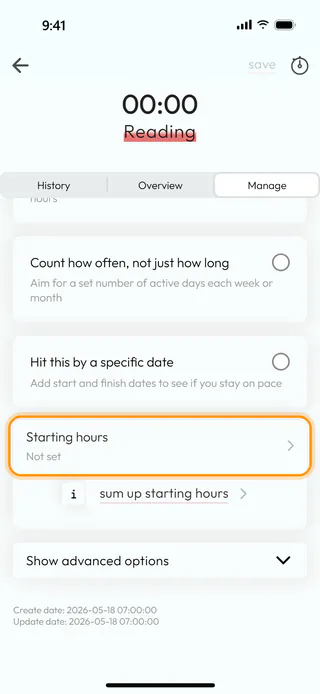
On the home screen, tap Topic Manager, switch to Meaningful and open the topic, here Reading, which has no entries yet. Switch to Manage and scroll down to the row Starting hours, which says "Not set" for now. Under it, the round button with an "i" explains the idea in a few lines, and Sum up starting hours opens a simple calculator, whose result you type in yourself. Tap the row.
Say how many hours and when
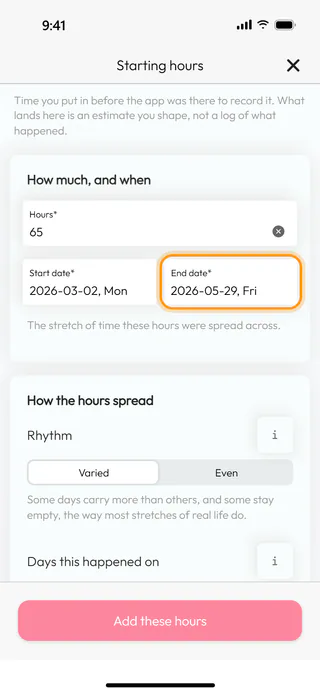
The window Starting hours opens. Under How much, and when, type the amount into Hours*, here 65, then pick Start date* and End date* on their wheels and tap Confirm for each, here from 2026-03-02 to 2026-05-29. Neither date can lie after today, the start comes before the end, and one go takes up to 10000 hours.
Choose how the hours spread
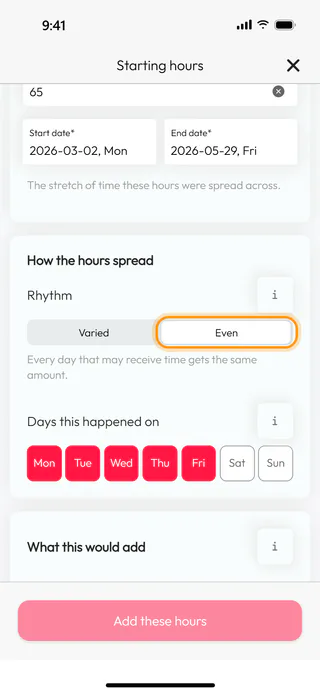
Under How the hours spread, Rhythm decides how the hours fall on the days. Varied gives some days more than others and leaves some empty, the way most stretches of real life look, and adds How much in one day for the least and the most a single day could hold. Even gives every allowed day the same amount, which suits something you kept up steadily. Here it is Even. Then untick the days the activity did not happen on in Days this happened on, here Sat and Sun, for an hour of reading on every weekday.
Check what this would add
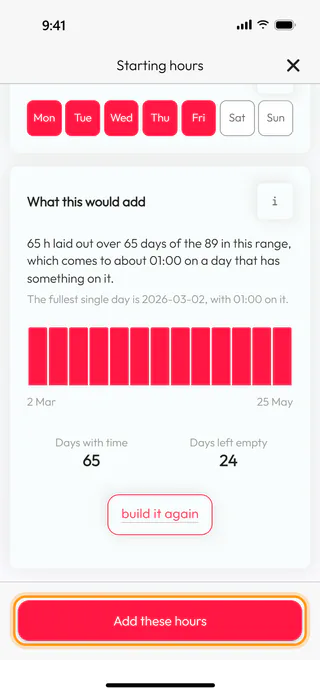
Tap Build a spread. What this would add now describes the entries it would make, here "65 h laid out over 65 days of the 89 in this range, which comes to about 01:00 on a day that has something on it.", with a bar for each week, 65 Days with time and 24 Days left empty. Nothing is written yet. If something looks off, change a field and build the spread again.
Add the hours
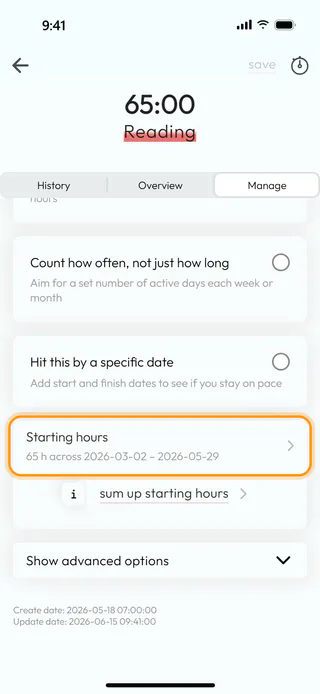
Tap Add these hours. The app says "Starting hours added.", closes the window, and the row now reads "65 h across 2026-03-02 – 2026-05-29", while the total at the top has grown to 65:00. Save is not needed, since the window writes the entries itself. Opening the row again shows everything you set. After a new preview, Replace starting hours swaps the added entries for new ones, and Remove starting hours takes them away, while the entries you logged yourself stay untouched either way.
See them in History
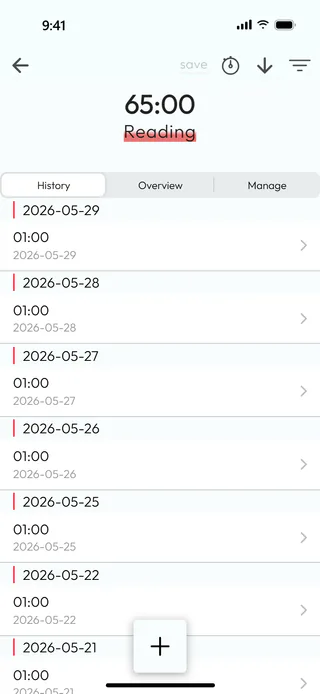
Switch to History. The added hours are entries like any other, an hour on each weekday from the end of May back to the start of March, and they count in Time Entry, on Overview and in Statistics too. They cannot be edited one by one, though each of them can still be deleted, and a change to the whole stretch goes through Starting hours again.
What's next
With some history behind it, the topic has averages and a look ahead to show, as See how a topic adds up explains, and Change or delete a topic covers the other choices on the same tab.

