 Wastime
Reorder your topics
Topics line up in the order you added them, which is rarely the order you live them in. The one you log most often, or the one you would like to give more of your time to, can stand at the top, where it is the first thing you see whenever you pick a topic.
Before you start
You need at least two topics on the same side, since there is nothing to sort with one. Add a topic shows how to create them.
Steps
Open the sorting
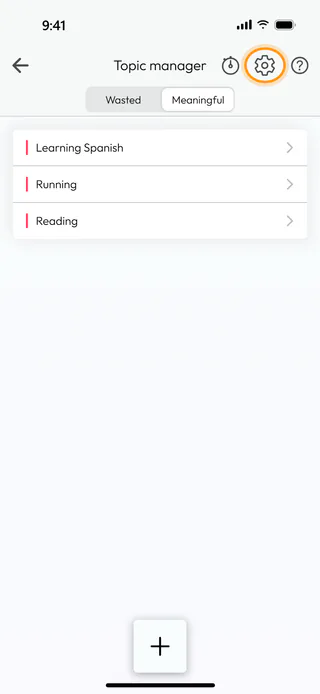
On the home screen, tap Topic Manager and switch to Meaningful, where the topics stand as Learning Spanish, Running and Reading. Tap the gear button at the top. It sorts only the side on the screen, and it stays grey while that side has fewer than two topics.
Drag a topic into place
The window Sort Meaningful Topics opens with a handle of three lines at the right of every topic. Hold the handle of the topic you want to move, here Running, and drag it up above Learning Spanish. The new order is saved as soon as you let go, and the app says "Order updated successfully". There is no undo, though dragging the topic back to where it was works just as well.

Close and check the list
Tap the cross at the top right. The list in Topic manager now starts with Running, and the same order follows you into the field Topic* of Log time and into the topics of the filter in Time Entry. The wasted side keeps an order of its own, sorted the same way through Sort Wasted Topics once you switch to Wasted.

What's next
Once the topic you care about most is at the top, See how a topic adds up shows what its hours come to over the weeks.

