 Wastime
Lay out your day in 24 hours
A day has 24 hours, and most of us could not say where all of them go. 24h lays one day out block by block, and once everything that already has a claim on it is in place, what is left over is the time you actually have free.
Before you start
Nothing has to be in place first. 24h starts with the same name window as Leftover, which Count the time left with someone walks through, and after it there are no steps to go through, only one screen with your day on it.
Steps
Start a day
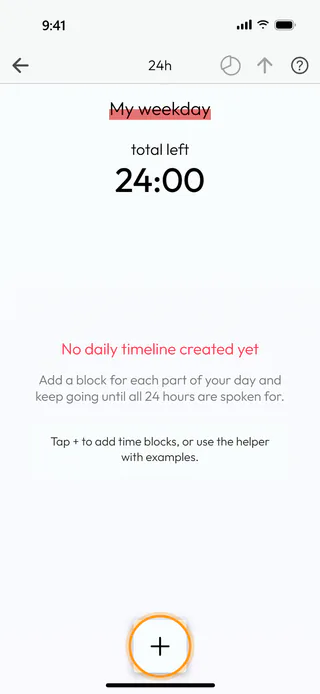
On the home screen, tap Calculators, then 24h, and start a new calculation with the round + button at the bottom of 24h calculations, naming it My weekday or after whatever day you have in mind. At the top of the screen total left reads 24:00, and the list under it is empty for now and says "No daily timeline created yet". Tap the light + button at the bottom to add the first part of the day.
Add a block
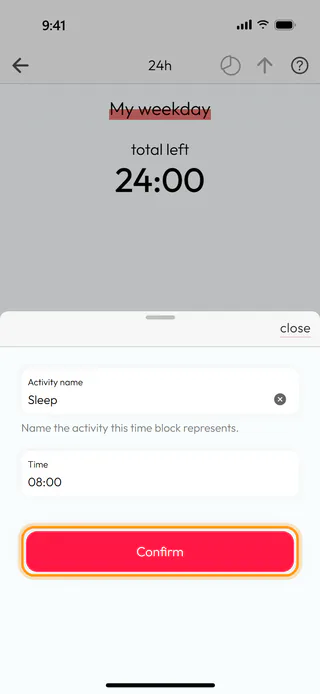
A window slides up from the bottom. Type Sleep into Activity name, then tap Time, turn the wheels to 08:00 and tap Confirm under them. Confirm at the bottom of the window adds the block to the day.
Fill in the rest of the day
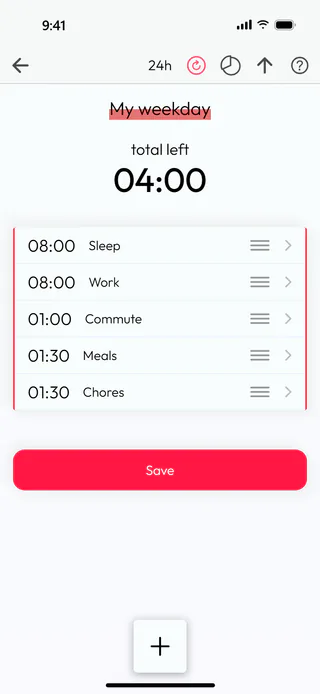
Add the rest of the day the same way, with 08:00 for Work, 01:00 for Commute and 01:30 each for Meals and Chores. Every new block joins the bottom of the list, and total left shrinks with it until it reads 04:00 once all five are in. A tap on a block opens it again to change its name or time, or to remove it with the bin at the top of its window, while a swipe to the side removes it at once, without asking. The handle on the right of a row moves the block up or down the list, and the arrow button at the top sorts the blocks by length, the longest first, with a second tap turning the order around.
When the day is full
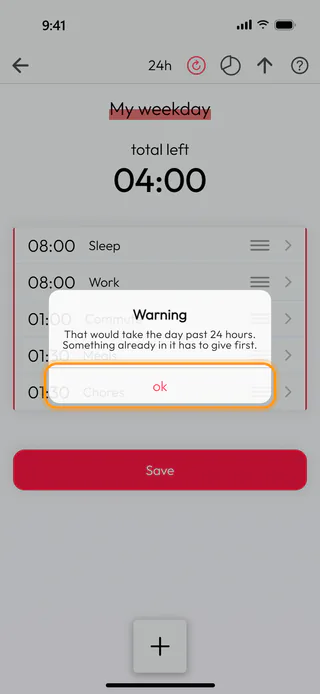
A block that does not fit into what is left stays out. With only 04:00 free, a five-hour Series brings up a window that says "That would take the day past 24 hours. Something already in it has to give first." Tap ok, and the day stays as it was. The block window does not keep what you typed in it, so make room first by shortening or removing another block, and then add the new one again.
See the day as a chart
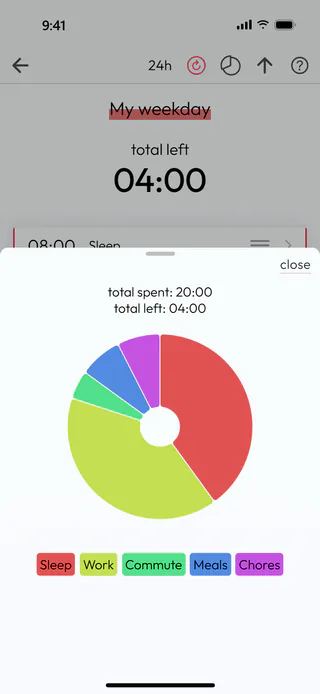
Tap the chart button at the top, the one shaped like a pie. A window shows "total spent: 20:00" and "total left: 04:00" over a ring of the day, with a colored tag for each block under it. A tap on a tag takes that block out of the ring and out of both totals, and a second tap brings it back, which is a quick way to see how the day would look without it. Close takes you back to the list.
Save it
Tap Save under the list. The Name window asks once more with My weekday already in it, and Save there keeps the day. The app says "Calculation saved successfully" and takes you back to 24h calculations, where My weekday now waits for the next time you want to look at it.
What's next
A day laid out in advance shows how you mean to spend it, and Log your time shows how to write down where the hours really went, so the two can be set side by side. The 24h calculator questions under From Calculators on the Questions screen go further into the shape of an ordinary day, and Reflect on a question shows how a deck works.

